

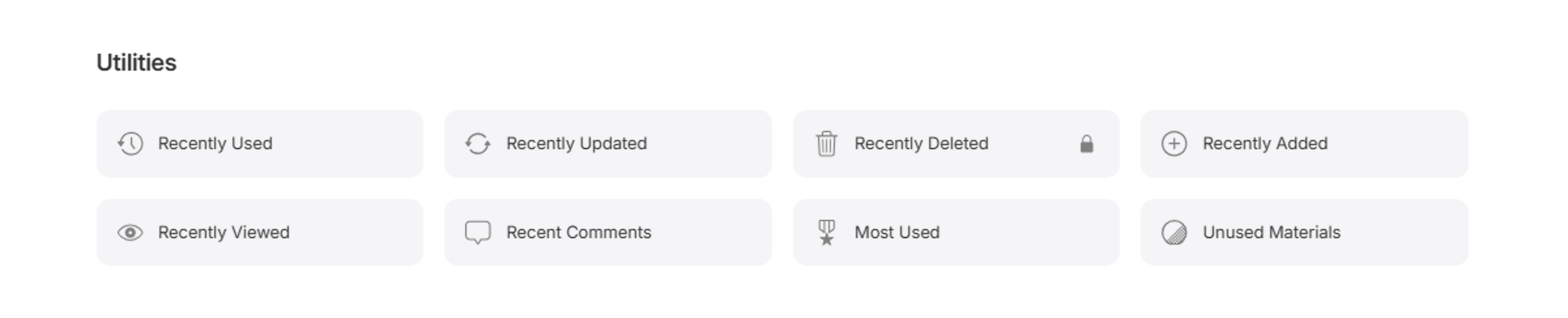
Utilities
Recently Used
Lists materials you’ve interacted with most recently in Kinship, such as loading into a model or opening for editing. A quick way to return to materials you’re actively working with without needing to search again.Recently Viewed
Lists materials you’ve opened in the web app most recently, making it easy to revisit items you’ve already looked at without retracing your steps. This is helpful when you remember seeing a material but can’t recall exactly which one or when.Recently Added
Lists new materials uploaded to your team’s library, giving everyone a quick way to see what’s been added lately. It’s useful for reviewing new content, staying aware of updates, and discovering recently introduced materials.Recently Updated
Lists materials in your library that have been modified - whether that’s changes to name, keynote, mark, identity data, appearance asset type, or other properties. It provides an overview of recent activity within the library, helping you stay aware of updates.Recent Comments
Lists the latest comments made on materials across your team, giving you a simple way to follow discussions, track feedback, and see where input or review may be needed. Selecting an entry takes you directly to the comment thread on that material’s page.Unused Materials
Lists all materials in your library that aren’t currently used in any tracked models. It’s a helpful place to identify content that may be outdated, redundant, candidates for cleanup or review.Recently Deleted (administrators only)
Lists materials removed from the library within the last 30 days, allowing administrators to review or restore them before they are deleted permanently. Materials that have been deleted in error can be found here.Most Used Materials
Ranks materials by how many models they appear in, highlighting which materials are most widely used across your projects. It’s useful for identifying high-value content, understanding adoption patterns, and prioritizing which materials deserve closer attention.Resources
Attachments
Lists all files attached to materials in your library in a central location, such as images and datasheets. Each file displays the material(s) it is attached to, helping you review consistency across materials. Administrators can remove files that are no longer needed. Selecting a material navigates to its All Files page showing all its attachments, and enabling administrators to use any attachments as Highlights.Image Maps
Displays all image maps used in materials in your library in a central location. Image maps can be filtered by their map type (e.g base images, bump maps, cutouts) or by the Class or appearance asset type of the material they belong to. This page provides your team with a library of image maps that can be reused in other materials. Click the menu for an image map and select View Related Materials to see a listing of materials it is used in.
Utilities for individual materials
Further utilities are found at the bottom of each material’s item page.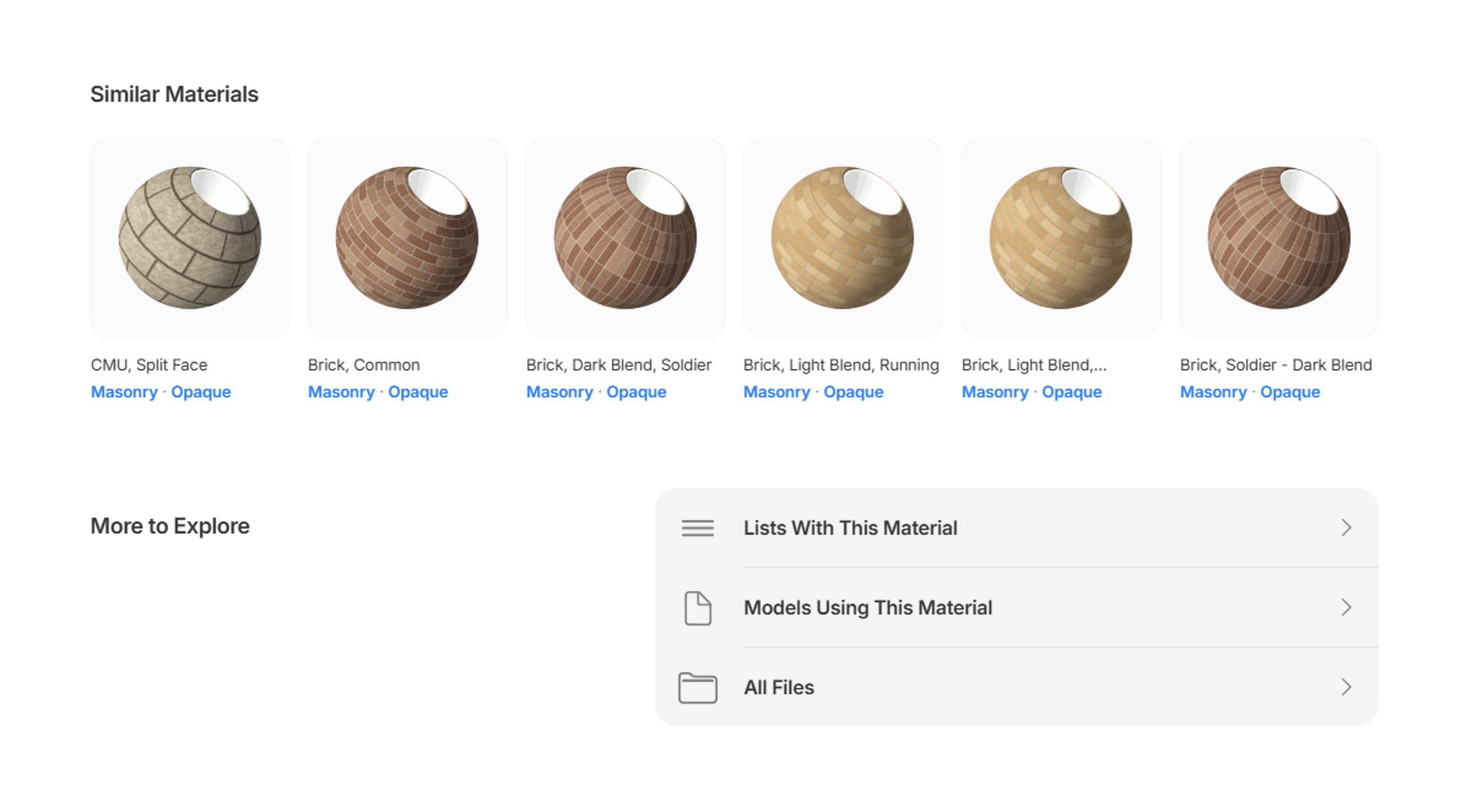
Similar materials
The similar materials section displays other materials in the library that share a Class and / or appearance asset type with the current material. This helps you ‘shop around’ for other similar materials that may be suitable. They are shown in the following order:- Materials that have the same Class AND appearance asset type.
- Materials that have the same Class.
- Materials that have the same appearance asset type.
Lists with this material
Shows all Lists in your library that include the selected material. It helps you audit which lists contain the material and quickly add or remove it from lists as needed.Models using this material
Lists all tracked models that contain the selected material, giving you a quick way to understand where it’s being used across your projects.All files
The All Files page shows all files attached to the material, in the following groups:-
Featured: Attachments or image maps selected by administrators for display on the material item page. To feature a file from attachments or image maps, click its menu and select Feature. To remove a featured file, click its menu and select Remove Highlight - this will remove the file as a highlight but not delete it from the material.
-
Attachments: Files attached to the material. Administrators can click on the
 button to add new files to the material. Attachments can be removed by clicking their button and selecting Delete.
- Image Maps: Displays image maps used in the material’s appearance asset. Image maps can be used as Highlights.
- Revit File: Allows a sample Revit file with the material applied to a placeholder object to be downloaded.