

What public and restricted projects are
- Public projects: Projects visible to all team members (default visibility mode).
- Restricted projects: Projects marked as confidential, visible only to administrators (or security administrators if enabled) and project team members.
Visibility and access
Public Projects
Restricted Projects
Who can view projects
Public Projects
- All team members can view public projects and their models
- No restrictions on browsing, searching, or accessing content
Restricted Projects
Restricted projects are visible to:-
Administrators (or Security Administrators if enabled)
- When Security Administrators are enabled, regular Administrators lose access unless they’re part of the project team
- Security Administrators always have access
-
Project team members
- Users who have performed at least one Synchronize with Central (SwC) from a model in the restricted project
- Team membership is automatic based on SwC activity
This same logic applies to Model Sync Rules: since these rules are path-based, they follow the same file access principles. If a user can’t access files at a particular path due to company restrictions, they won’t be able to sync with models in that path, and thus won’t become project team members.
What users without access cannot do
For restricted projects, users without access cannot:- Browse to the project’s page
- See the project or any of its models in the Browse Projects or Browse Models pages
- See search results from the project in the add-in search box or on the webpage search results
- Assign collections to the project
Team membership
How project team membership works
- Team membership for restricted projects is automatic
- A user is added to a restricted project when they perform a Synchronize with Central (SwC) from a model in that project
- Once added, the user has ongoing access to the project
- Team membership is based on actual work activity, not manual assignment
Public projects
- All team members have access by default
- No team membership concept applies
Creating and managing restricted projects
How to create restricted projects
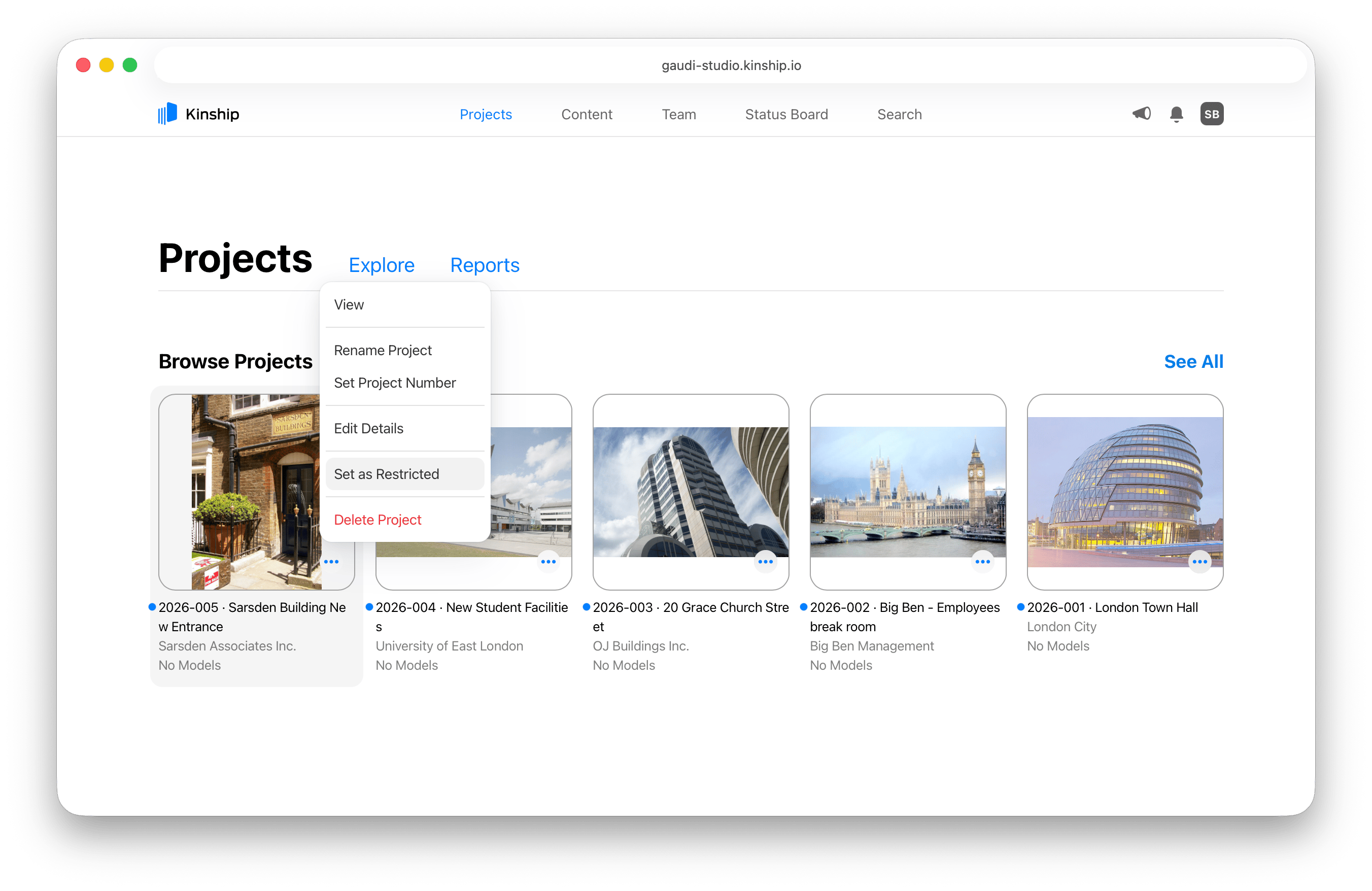
Restricted projects can be created From the web interface- An administrator (or security administrator) can Set as Restricted from the project page
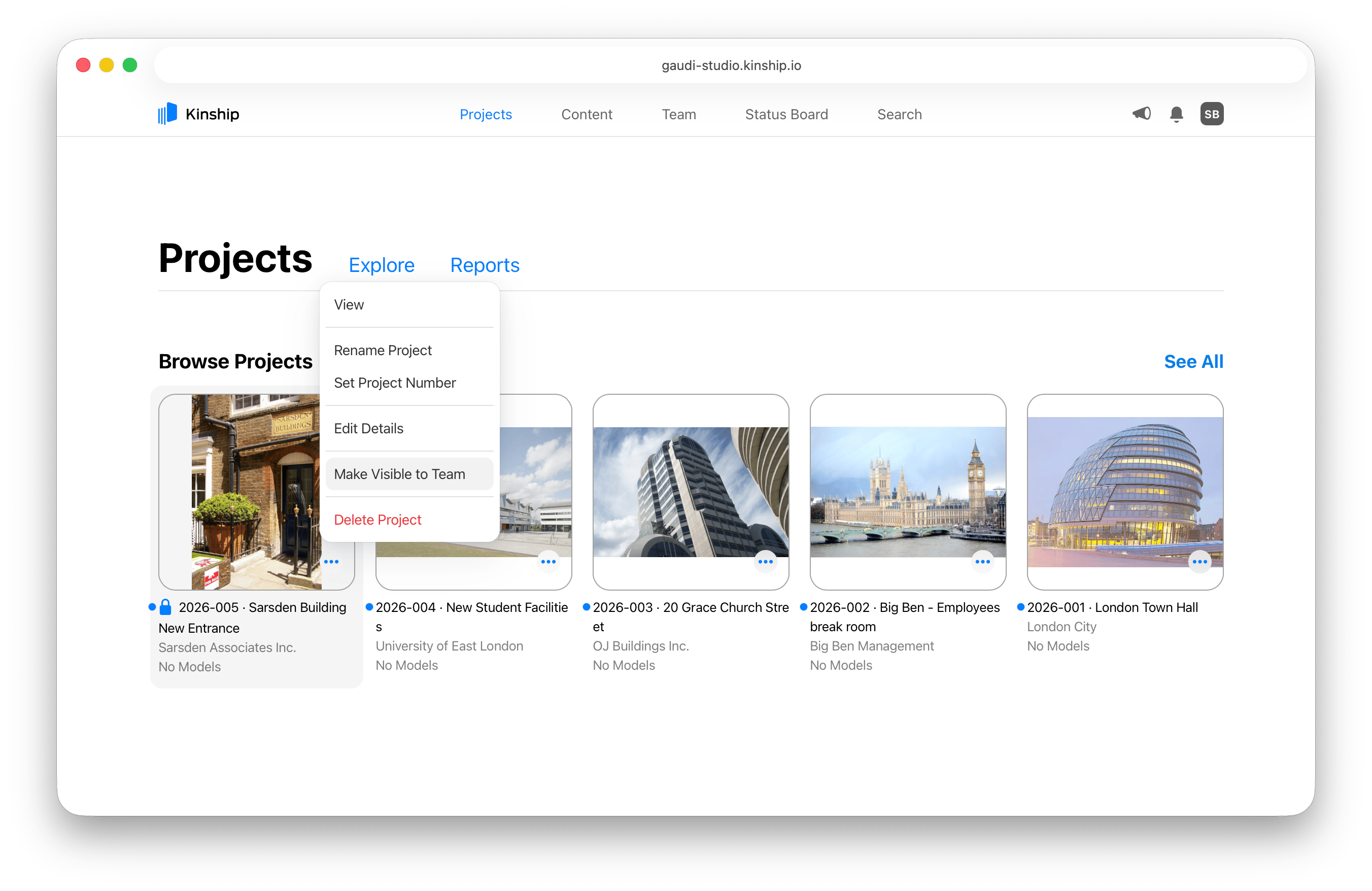
- An administrator can also Make Visible to Team to change a restricted project back to public
Who can change restricted status
The table above shows permissions when Security Administrators are enabled. If your team doesn’t use this role, Administrators have the same permissions as Security Administrators.
Search behavior
Public Projects
- Project content and model content appear in search results for all users
- Searchable in both the Revit add-in and web interface
- No restrictions on content discovery
Restricted Projects
- Project content and model content are not searchable by users without access
- In the Revit add-in: Non-admin project members will see results from a restricted project when working on that project (i.e., when a model from that project is active in Revit)
- If a different model is active in Revit, users won’t see results from restricted projects to which they don’t have access
- Restricted collections work the same way: when assigned to a project, members can see that content when the model in that project is active; if they have a different model open, they won’t see the result
- Search results are filtered based on the active model context and user’s project team membership
Model Sync Rules integration
Model Sync Rules can automatically create restricted models:- Rules can be configured to automatically add matching models as restricted
- This creates a new restricted model automatically
- Useful for protecting sensitive work based on file location or name patterns
*\confidential\* can automatically create restricted models for any model in a confidential folder.
Security Administrator implications
When Security Administrators are enabled:- Regular Administrators lose access to restricted projects unless they’re part of the project team
- Only Security Administrators can view and manage restricted projects by default
- This creates separation between general administration and security-sensitive administration
- Administrators have full access to restricted projects
- Administrators can view, manage, and change restricted status
UI indicators
- Public projects: No special icon, appear normally in project lists
- Restricted projects: Display a blue lock icon next to the project name
- Project browse pages
- Project lists
- Search results (for users with access)