

Why visibility control matters
In most teams, different projects have different confidentiality needs. A public-facing commercial project might be fine for everyone to see, while a confidential client proposal or internal R&D work should be limited to those directly involved. Two visibility modes are supported:- Public projects: Visible to all team members. Anyone can browse, search, and access these projects and their models.
-
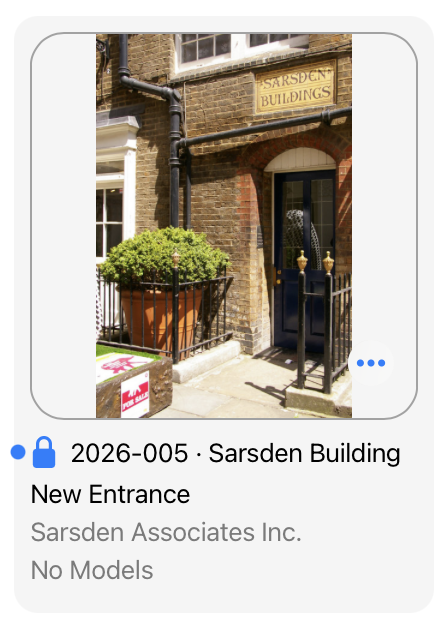
Restricted projects: Only visible to administrators (or security administrators if enabled) and team members who have actually worked on the project. These projects are marked with a blue lock icon.
What restricted projects are
A restricted project is a project that has been marked as confidential. When a project is restricted:- The project and all models assigned to it are only visible to administrators and project team members.
- Project content and model content are not searchable by users who don’t have access.
- In the Revit add-in: Non-admin project members will see results from a restricted project when working on that project (i.e., when a model from that project is active in Revit).
- If a different model is active in Revit, users won’t see results from restricted projects to which they don’t have access.
- The project appears with a blue lock icon next to its name, making it easy to identify.
- Users without access cannot browse to the project’s page, see it in Browse Projects or Browse Models, or assign it to collections.
How visibility works
Understanding who can see restricted projects is key to using them effectively.Who can view restricted projects?
Restricted projects are visible to:-
Administrators (or Security Administrators if that role is enabled)
- When Security Administrators are enabled, regular Administrators lose access to restricted projects unless they’re part of the project team.
- Security Administrators always have access to restricted projects.
-
Project team members
- Users who have performed at least one Synchronize with Central (SwC) from a model in that restricted project.
- Team membership is automatic—when someone syncs with a model, they’re added to the project team.
This same logic applies to Model Sync Rules: since these rules are path-based, they follow the same file access principles. If a user can’t access files at a particular path due to company restrictions, they won’t be able to sync with models in that path, and thus won’t become project team members.
What users without access cannot do
A user who doesn’t have visibility of a restricted project cannot:- Browse to the project’s page
- See the project or any of its models in the Browse Projects or Browse Models pages
- See search results from the project in the add-in search box or on the webpage search results
- Assign collections to the project
When to use restricted vs public projects
The choice between public and restricted projects depends on your confidentiality needs and team structure.Use public projects when:
- The work is not confidential or sensitive
- You want all team members to be able to discover and learn from the project
- The project represents standard firm work that benefits from broad visibility
- You want to encourage cross-project collaboration and knowledge sharing
Use restricted projects when:
- The work is confidential or client-specific
- You’re working on competitive proposals or bids
- The project involves internal research or development
- Client agreements require restricted access
- You want to limit visibility to only those directly involved
How project team membership works
When a user performs a Synchronize with Central (SwC) operation on a model that’s part of a restricted project, they’re automatically added to that project’s team. This means:- You don’t need to manually grant access to every team member
- Access is based on actual work activity, not arbitrary assignments
- The project team naturally reflects who’s actually working on it
- Once someone has synced with a model, they have ongoing access to the project
Security administrators and restricted projects
Kinship supports an optional Security Administrator role that provides tighter control over restricted content. When Security Administrators are enabled:- Regular Administrators lose access to restricted projects unless they’re part of the project team
- Only Security Administrators can view and manage restricted projects by default
- This creates a separation between general administration and security-sensitive administration
Connections to other features
Restricted projects work alongside other features to provide comprehensive access control:Restricted Collections
Just as projects can be restricted, so can collections. Restricted Collections are only visible to Security Administrators and users who have been granted access. Combining restricted projects with restricted collections gives you fine-grained control over both project visibility and content access. Restricted collections work the same way as restricted projects: when assigned to a project, members can see that content when the model in that project is active; if they have a different model open, they won’t see the result.Real-world scenarios
“We’re working on a competitive proposal that needs to stay private.”Mark the project as restricted when you create it. Only the team members working on it will have access, and it won’t appear in search results for other team members. “Our client agreement requires that their projects are only visible to assigned team members.”
Use restricted projects for all work for that client. Team members are automatically added when they sync with models, so access is managed naturally through work activity. “We have internal R&D projects that shouldn’t be visible to the whole team.”
Create restricted projects for R&D work. Administrators and the R&D team will have access, but it won’t clutter the project list for other team members.
Trade-offs and considerations
Restricted projects provide important privacy benefits, but they also have implications:- Reduced discoverability: Restricted projects won’t appear in search results for users without access, which can limit cross-project learning.
- Automatic membership: Team membership is based on SwC activity, which means you can’t pre-assign team members before they’ve worked on a model.
- Administrator access: When Security Administrators are enabled, regular Administrators lose access to restricted projects, which can complicate administration workflows.