

Materials will only be available if Materials Management is enabled in account settings by an administrator.
Where materials are organized
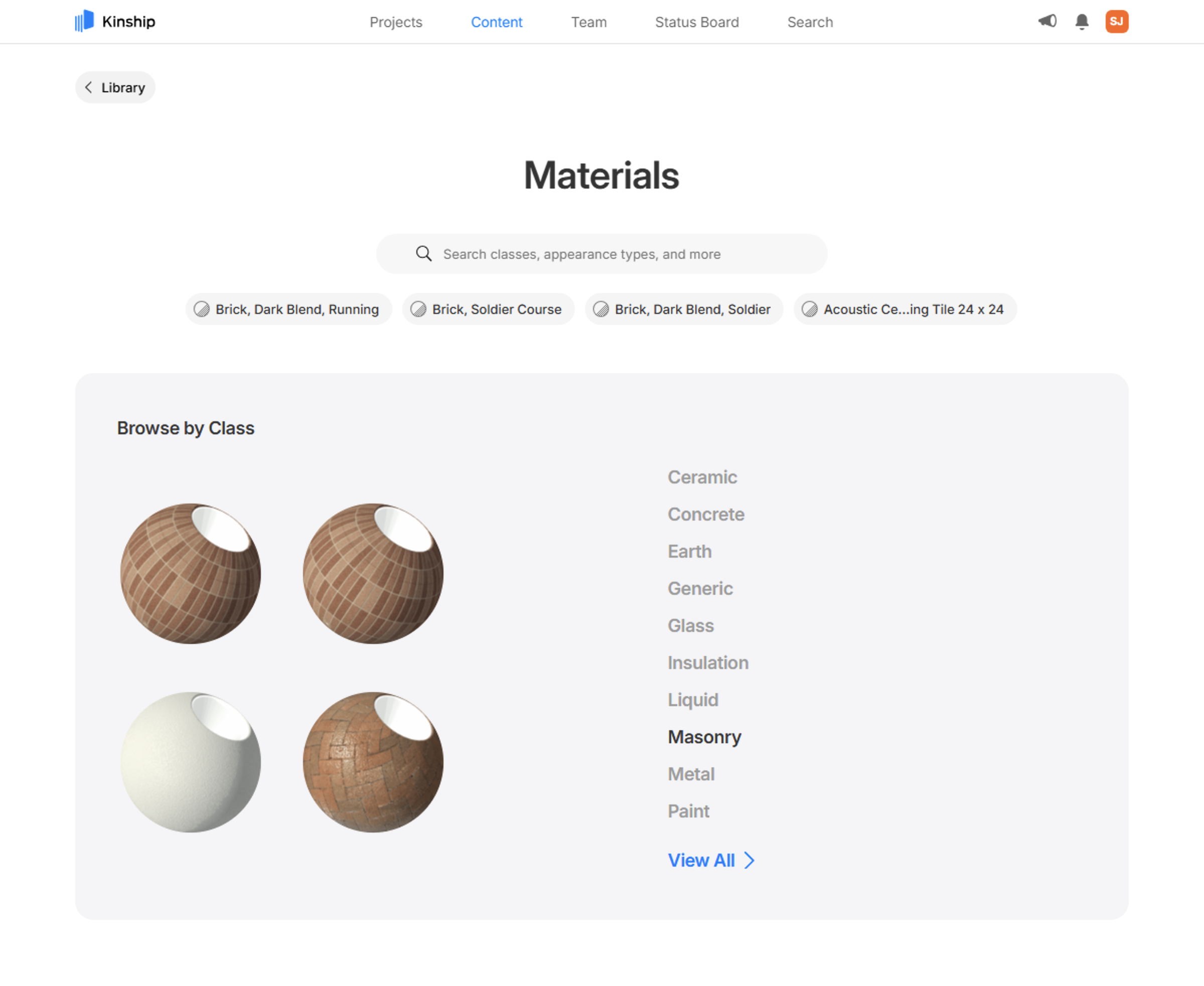
Materials can be found in three distinct locations within your team:- In the Library: Materials have a dedicated page which allows administrators to add and organize materials for your team to browse.
- In families within the Library [Coming Soon]: In an upcoming release you will be able to browse materials applied to the families in your library, allowing you to check consistency, load into Revit or add to your main library.
- In models: If turned on in Company Settings, materials will be tracked in models and displayed on the model’s Content section.
Adding and managing materials in the Library
Materials can be added from any Revit model to the library using the Revit add-in, or from tracked models. Materials can be added into lists and collections in the same way as other content types. Learn more about managing materials in the Library.Browsing materials
You can browse for materials in the library using any of the below listings:- By Class: Materials of a similar kind (e.g Concrete, Glass, Wood). This is the recommended way to browse materials for most use cases. Learn more about Material Classes.
- All Materials: Displays all materials in the library. Useful to get an overview of the library, and for administrators to organize materials into classes.
- By Appearance Asset Type: Materials using a specific appearance asset type. Most relevant for those comfortable with creating and editing materials. Learn more about Appearance Asset Types.
Next steps
Manage materials in your library
Learn how to manage materials using listings, edit material properties, and organize your content.
Material Classes
Organize materials using classes, including creating, merging, deleting, and managing unassigned materials.
Understand the Material Item Page
Learn about the rich information provided for each material and how to use it to inform selection and comparison.
Use Materials Utilities and Resources
Explore utilities and resources that help you stay on top of your library, including recent activity and related assets.