

Overview
Clicking any material in a listing will take you to that material’s item page. This lists a range of information related to the material, and is designed to help you determine if the material is appropriate before loading it into your model.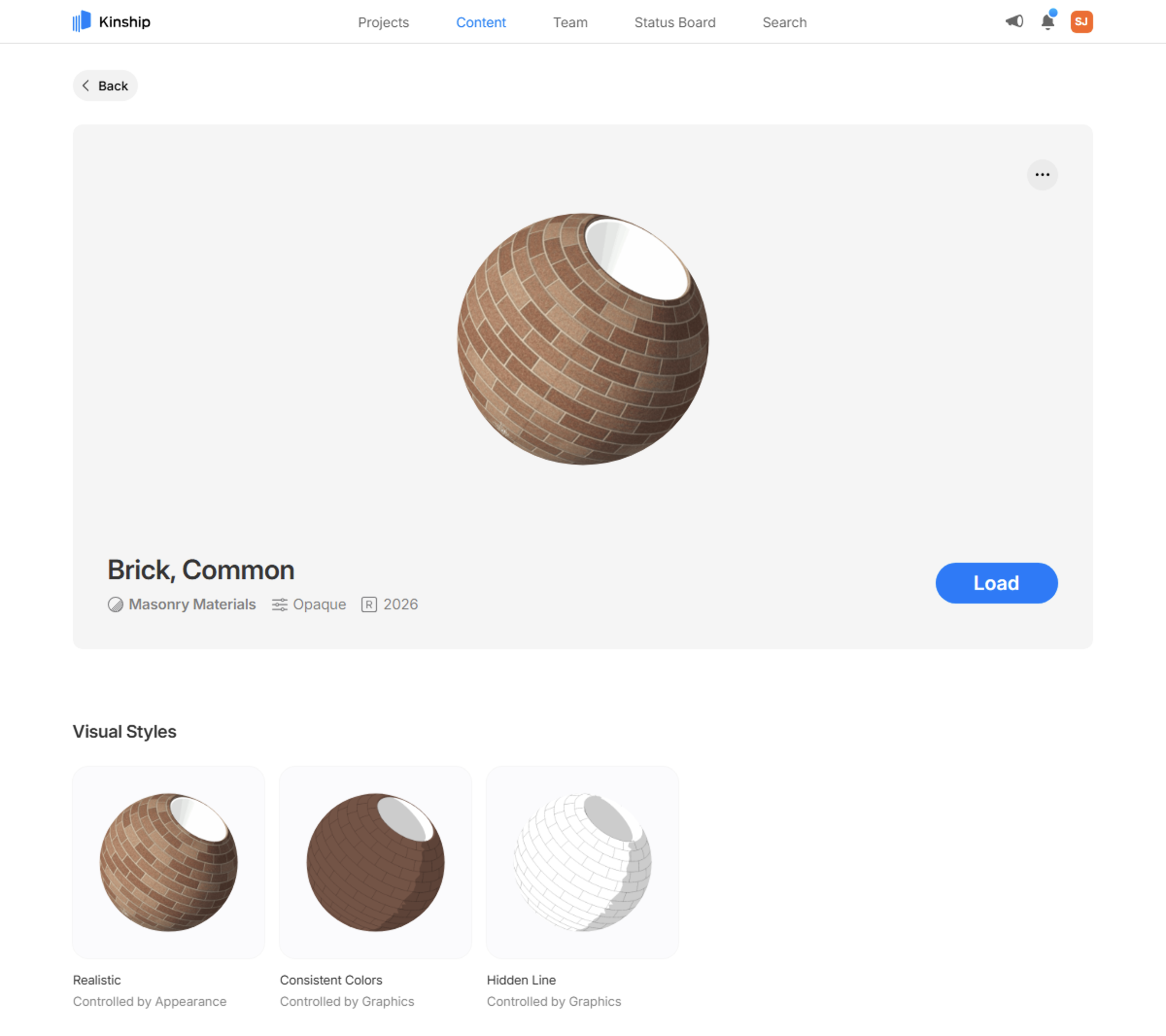
Item Page sections
Each section of the material’s item page is detailed below:Visual styles
Displays 3 thumbnails showing the material in 3 Revit view modes:- Realistic - Controlled by the material’s Appearance Asset
- Consistent Colors - Controlled by the settings in the Graphics section, including the shading color.
- Hidden Line - Controlled by the settings in the Graphics section, except the shading color.
About
The about section displays a description of the material and up to 2 reference links.Description
The description is a short text field designed to present information about the material such as material properties or product information. This field is populated on the website and is not linked to the Description parameter in the material’s Identity Data. Text added to the Description is used in search results, so may be used to add additional searchable information not already captured in the material name or Class.Reference Links
Reference links point to useful external resources as intranet pages or online product documentation. There are two editable slots, Documentation and Manufacturer. Reference links are not extracted or linked to the URL parameter in the material’s Identity Data. The Description and Reference Links can be edited by administrators using the Edit Info option under the button at the top of the material item page, or from Listings Views.
Revit material data
The following sections displayed on the material item page are extracted from the 5 ‘tabs’ in the Revit material. Each of these contain information relevant to specific use cases - they are displayed on the material item page to enable selection and comparison of materials before loading into Revit.Identity Data
This tab includes basic descriptive information about the material.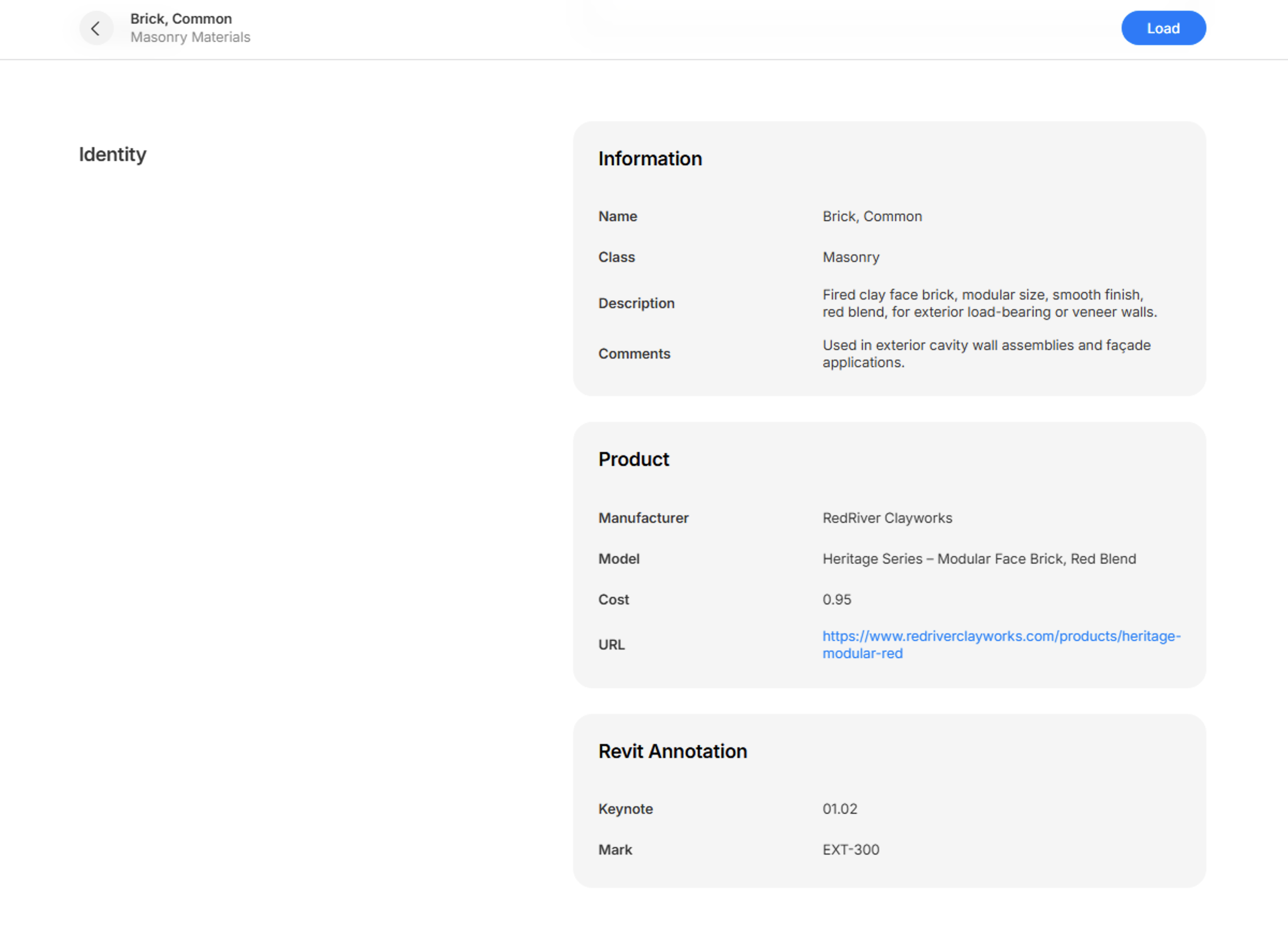
There are 3 editable fields in the Identity Data:
Class
The Class is the primary way of organizing materials in the library. Learn more about Classes. Administrators can change the material’s Class in the following ways:-
Change Material Class in the menu at the top of the material item page.
-
Edit Info in the same menu.
- From listing pages.
Keynote and Mark
The Keynote and Mark (Revit Annotation) parameters are frequently used for tagging materials in drawings and linking to specifications. Administrators can edit the values of both parameters in the following ways:-
Selecting Edit Info in the menu at the top of the material item page.
- From listing pages.
Materials that are downloaded from the website will not show the amended values.
Graphics
The graphics settings control how the material appears in views using the hidden line, shaded and consistent color visual styles.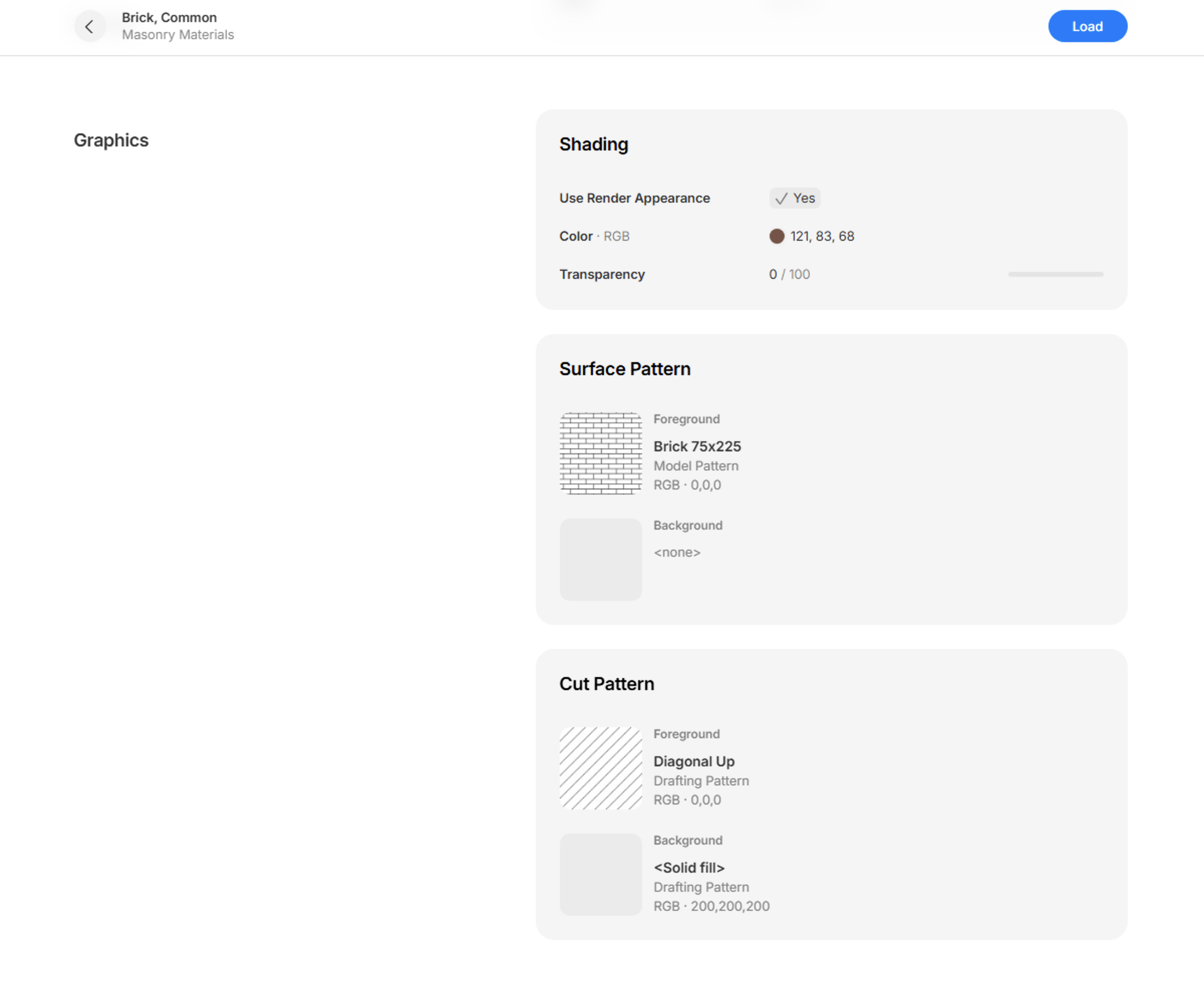
- Use Render Appearance - When this is on, the shading color and transparency are inferred from the material’s appearance asset.
- Shading Color - Color used for the material in shaded and consistent color views.
- Transparency - Transparency of the material used in 3D views using the shaded and consistent color visual styles.
- Surface Patterns - Fill pattern or solid color seen on the surface of families the material is applied to.
- Cut Patterns - Fill pattern or solid color seen when the family the material is applied to is cut in the view (e.g section views).
Appearance
The material’s appearance asset controls how the material appears in renderings, and in views using the realistic and textures visual styles.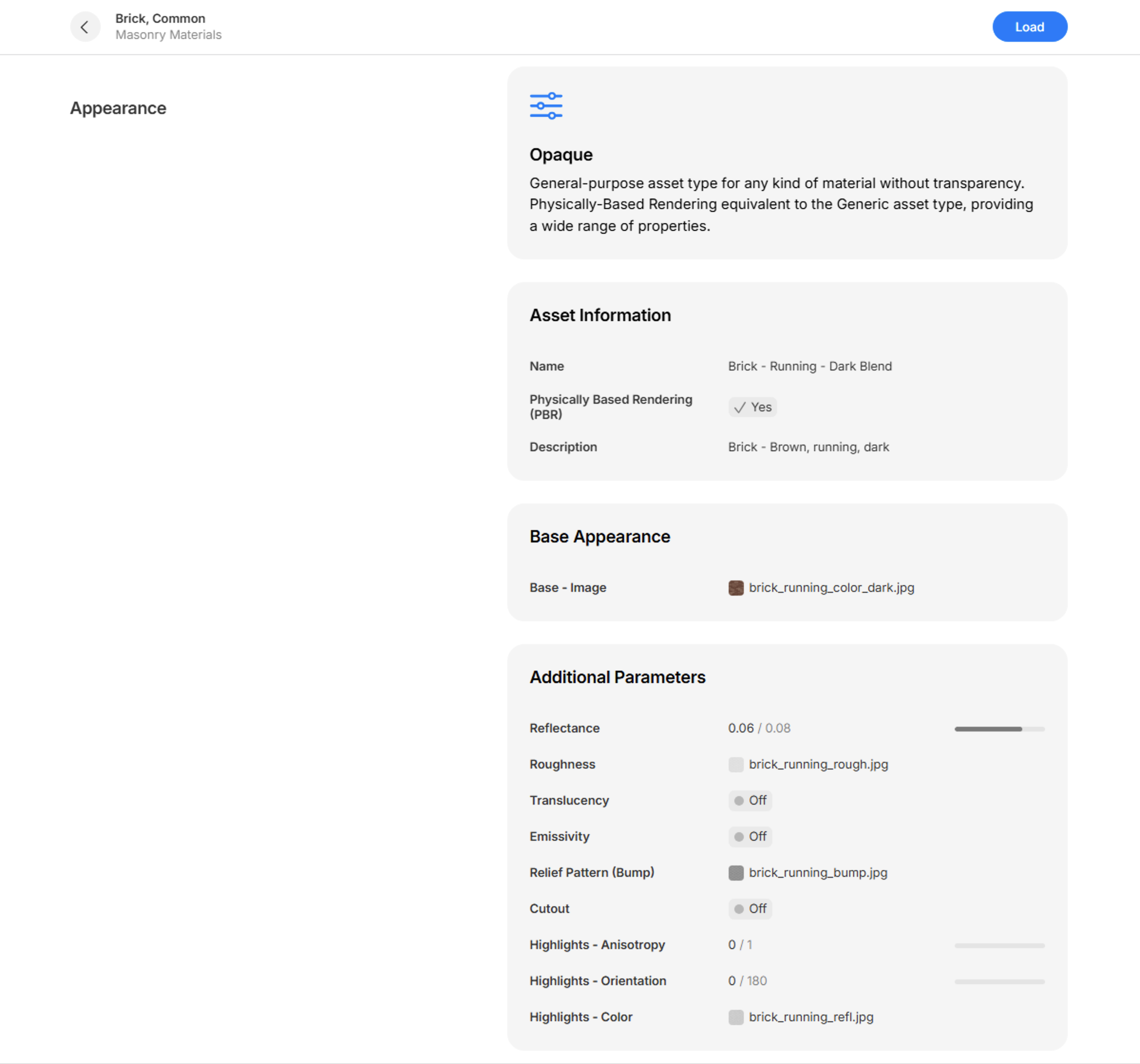
- Colors (shown with an RGB code): The base color of the material.
- Presets (selectable in dropdown menus): These sometimes determine the value of other settings, make new settings available, or otherwise modify the material’s appearance.
- Numerical values: These are usually shown in a comparable way to the Revit material browser with a slider, indicating the minimum and maximum values.
- Image maps: Image files linked to the material.
- Procedural maps: Pre-defined list of textures that are generated inside the Revit material browser.
- Base Color / Image: the overall color, image map or procedural map determining the material’s appearance. These are typically the uppermost properties in the appearance section in the revit material.
- Additional parameters: other settings used by the material (e.g bump, transparency). Settings that are available in the appearance asset type but turned off are shown, with an ‘Off’ indicator.
Material Performance - Physical and Thermal
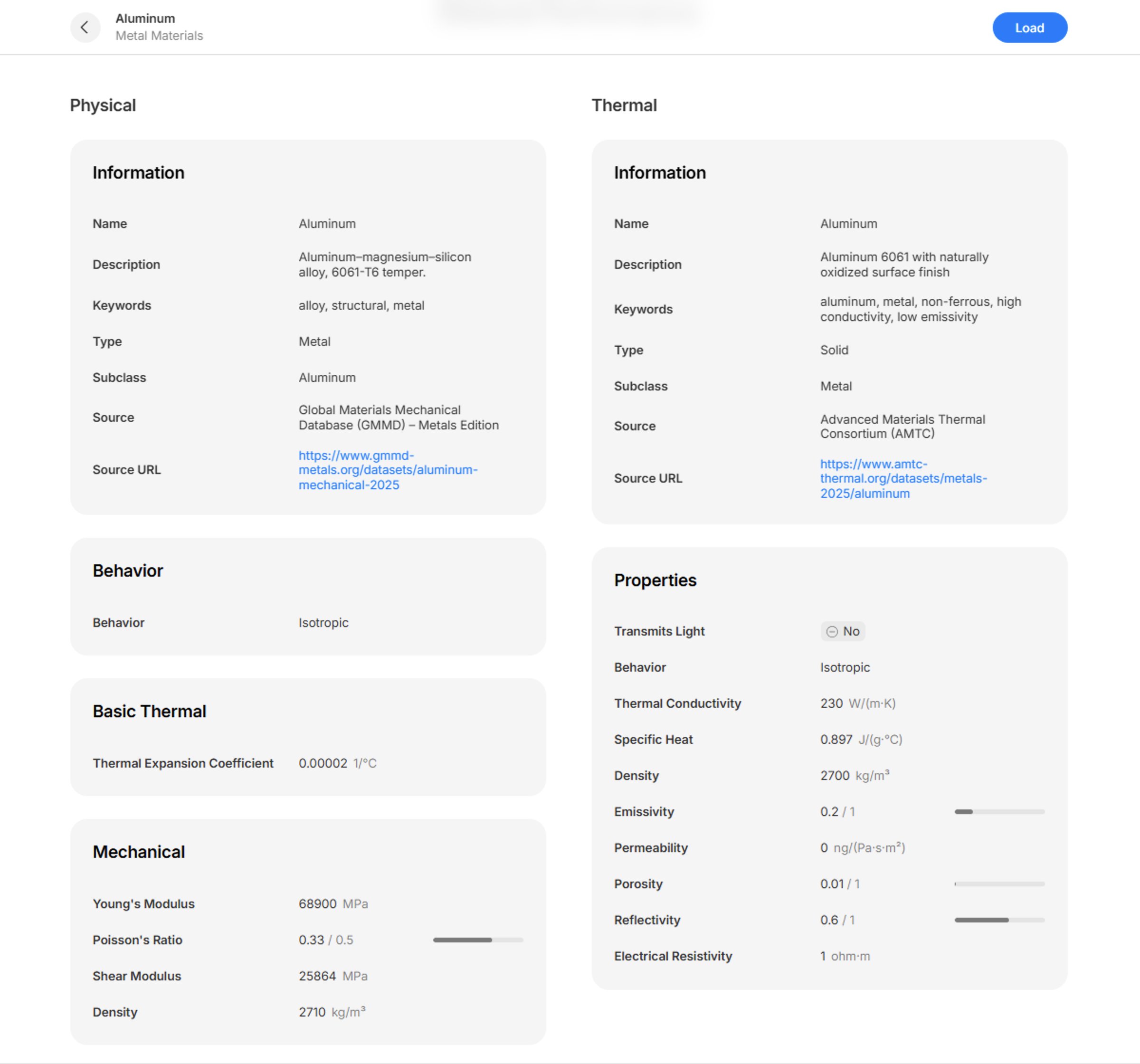
Some materials do not contain a physical and/or thermal asset. In this case the material item page will report that the material does not contain one.
All Files listing
Featured
The Featured section displays attachments and image maps that have been selected by administrators for display on the material item page. It may be used to call attention to key files relevant to selecting or using a material.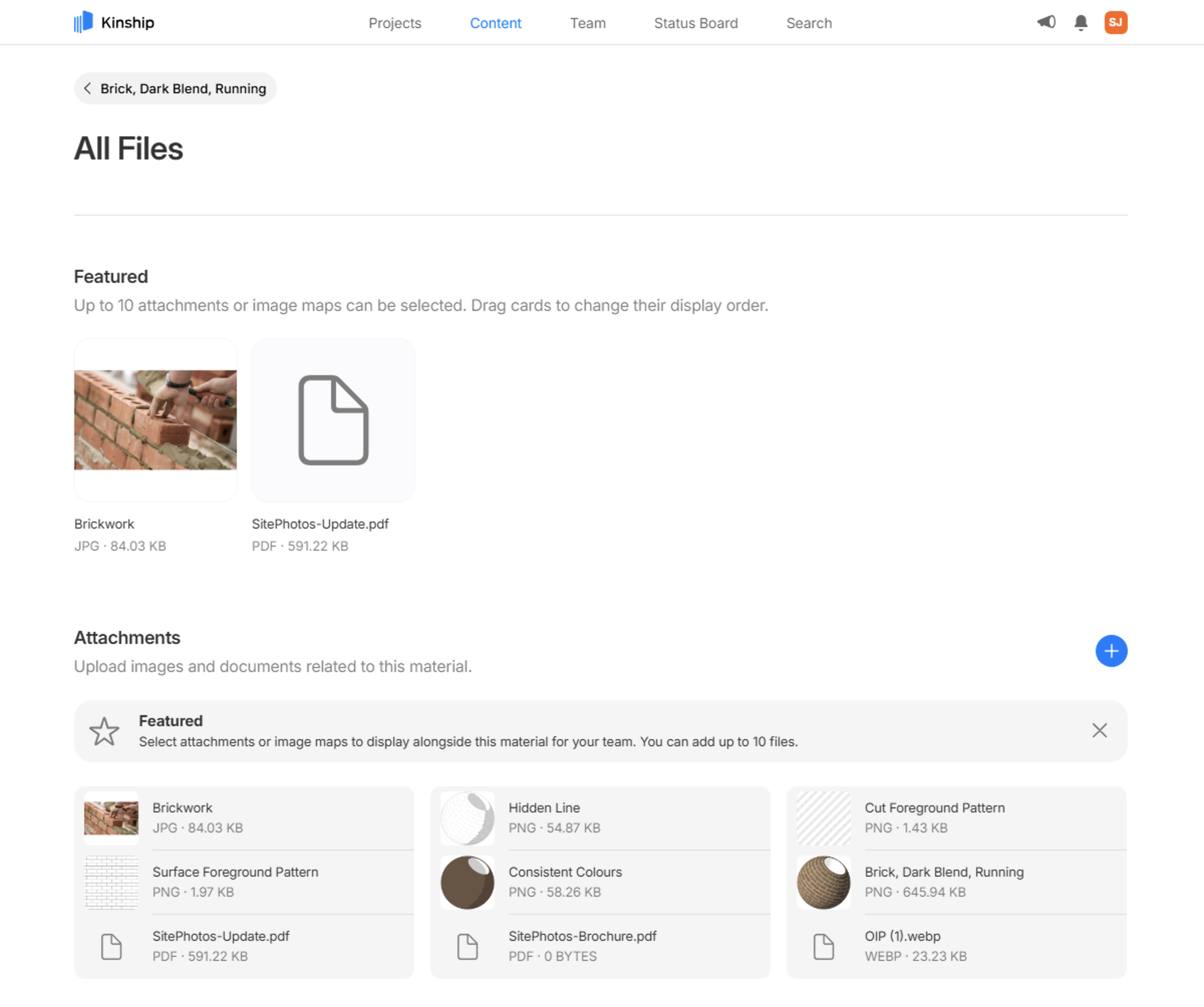
Attachments
Attachments are files such as images, documentation and product sheets attached to a material for reference purposes. Administrators can attach files to a material in the following ways:- From a Listings View.
-
Using the menu at the top of the material’s item page.
- From the All Files page for the material.
Image maps
To represent real-world objects, Revit materials frequently rely on linked files, or image maps. One such image map might be a photo of bricks or concrete, which will be displayed on the surface of a wall to which the material is assigned. As well as defining the base appearance of the material, image maps can be used for various visual properties such as its bumpiness, relief or roughness.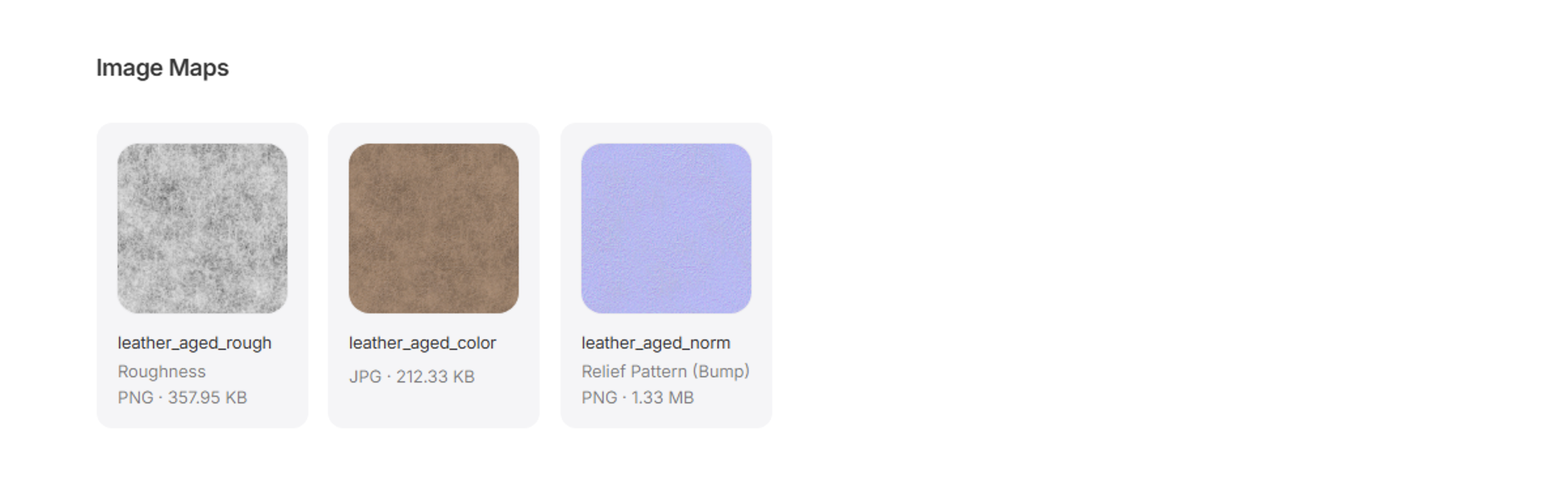
Learn more
Material Classes
Organize materials using classes, including creating, merging, deleting, and managing unassigned materials.
Appearance Asset Types
Learn about appearance asset types in Revit materials and how they’re organized in Kinship.
Materials Utilities and Resources
Explore utilities and resources that help you stay on top of your library, including recent activity and related assets.