

Before you start
- Your CSV must include an ID column. Without it, rows in the CSV can’t be matched to Library items.
- Only editable fields are updated. Non-editable columns (such as Category or Revit Version) are ignored.
- It doesn’t matter which listing you start the import from — updates are applied to matching items across your entire Library and Collections.
Import a CSV
- Open the more ⋯ menu from any listing view and click Import CSV…, or go to the Batch Updates page and click Import CSV.
- Drag your CSV file on to the dialog, or click Browse to select it.
- Click Import.
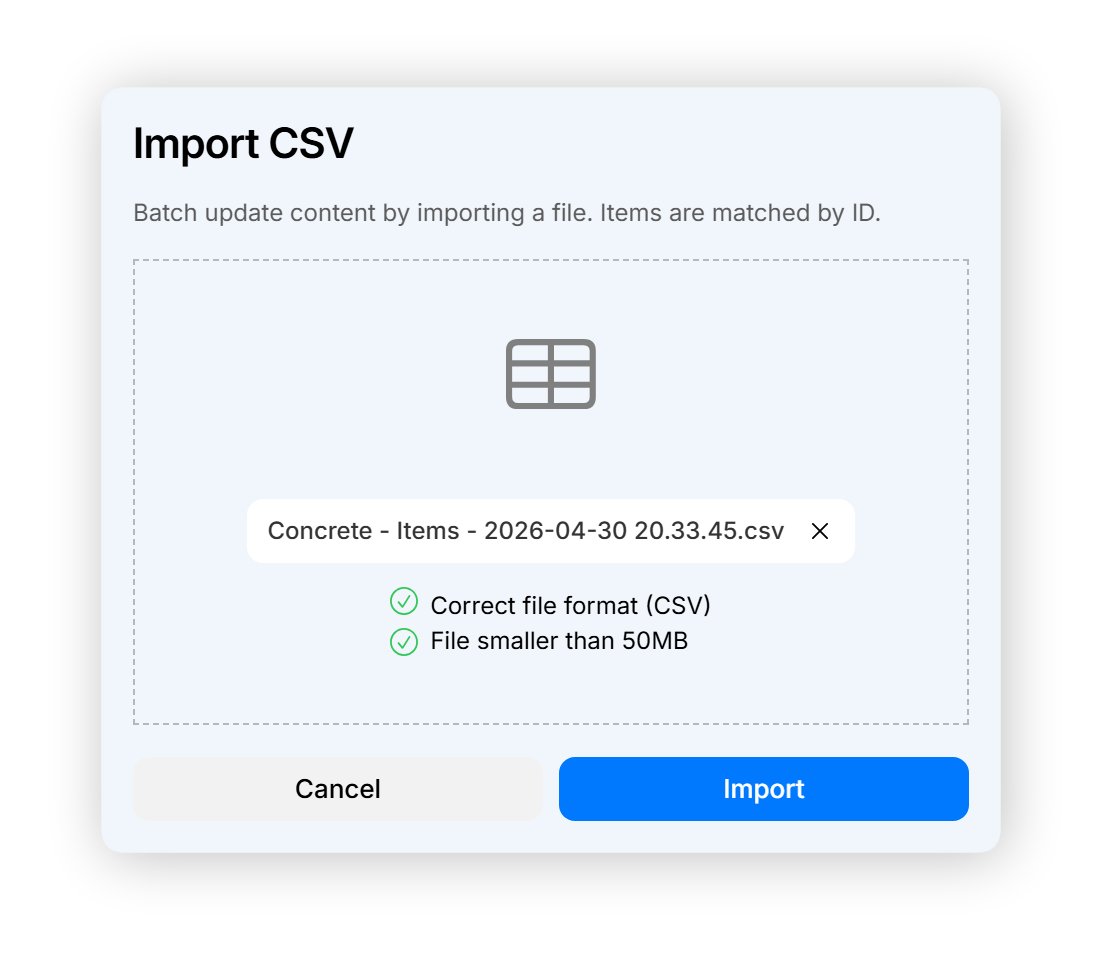
You can import changes to items from a listing of materials, and vice versa.
If something goes wrong
If there is an issue with the imported CSV file (for example, if it doesn’t contain an ID column), a notification appears at the bottom of the screen. Go to the Batch Updates page to see the specific issue with the imported file.Check the status of your import
Every import appears on the Batch Updates page, accessible from Batch Updates at the bottom of the Library page. Each import shows the filename and a status badge:- In Queue — waiting to be processed.
- Processing — updates to Library items are being applied.
- Completed — the import finished successfully.
- Failed — an error prevented the import from processing.
- No Updates — the file was processed but no items changed.
Things to know
- Changes overwrite current values. Whatever value is in the CSV replaces what’s currently in the Library, regardless of when the file was exported. Coordinate with your team when multiple team members are working on the same content.
- Empty cells clear fields. If an editable column is present and a cell is empty, that field is cleared on the item. The exception is Name — an empty Name skips the row instead. Materials with empty values for Class are moved to the “Unassigned” Class page.
- Missing IDs are skipped. If an ID doesn’t match any existing item or material, the row is skipped. This can happen when items have been deleted since the export.
Learn more
- How to export a CSV file to download content for editing.
- Batch updating — Reference for the full field reference and validation rules.
- About batch updating items for an overview of how batch updating works.