> ## Documentation Index
> Fetch the complete documentation index at: https://docs.kinship.io/llms.txt
> Use this file to discover all available pages before exploring further.
# How to Track Models
> Learn how to track your Revit models in Kinship to unlock project insights and analytics.
## Before you begin
For a model to be tracked, it must be workshared.
You'll be prompted to add a model when:
* A workshared model is saved as a central file that isn't already registered.
* You synchronize with central (SwC) to a central file that hasn't been registered yet. This often happens when the central file was created by someone without Kinship installed, or when the user who created the file chose not to add the model at that time.
## When will I be asked to track a model?
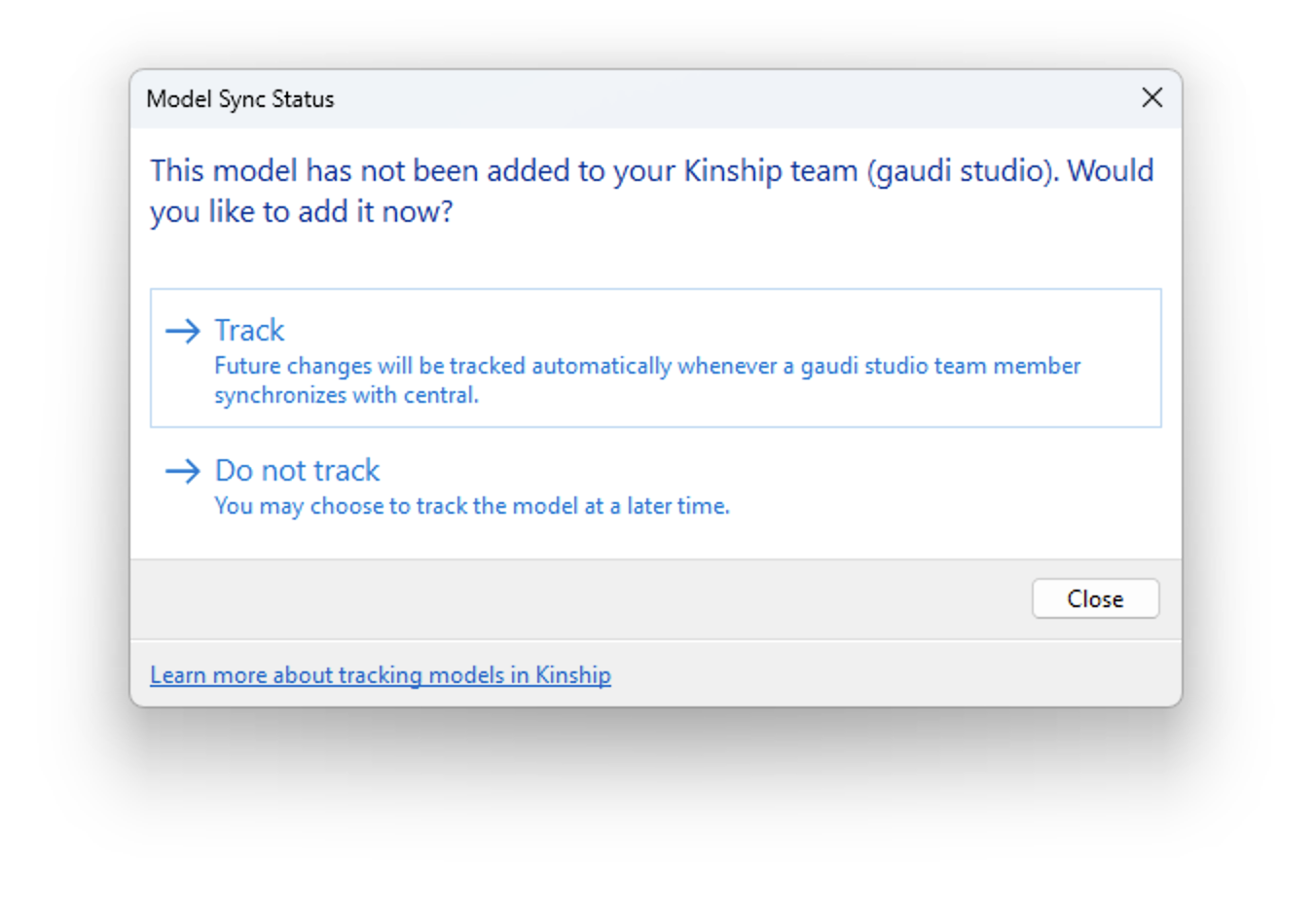
* **After performing Synchronize with Central (SwC)** on a workshared model, you'll be prompted if the model isn't already tracked.
* Choose **Track** to start tracking the model.
* Choose **Do not track** to skip tracking for this model (you won't be prompted again).
If you choose not to track, you can still add the model later—see below.
 ## If you're not prompted
If you are not prompted to track a model (for example, if Kinship wasn't installed when the central file was created, or the model was previously skipped), you can add it manually:
1. Open Revit and go to the **Add-Ins** tab.
2. In the Kinship panel, click **Model Sync Status**.
3. Follow the prompt to add the model for tracking.
## What happens when a model is tracked?
* **All content is automatically captured and uploaded —** all component and system families, annotations and details, as well as filled regions and patterns from your model.
Views, sheets, groups, and in-place families are not tracked.
* The model is assigned to a project:
* Public models join an existing project or remain unassigned.
* Restricted models create a new restricted project.
* You can check the sync status at any time using **Model Sync Status**.
* Use the web portal to view:
* Sync history, model details, Revit version, warnings, and more.
* Crash logs, journals, and content usage across projects and teams.
***
## Notes and troubleshooting
* **Local files aren't tracked by default**\
Models saved to local drives (like `C:\`) are skipped by default. To override, use **Model Sync Status** in the Kinship ribbon.
* **Admin rules may affect tracking**\
Your admin can set rules to always/never add certain models based on their location. [Learn more about Model Sync Rules.](about-model-sync-rules)
* **Model extraction setting**\
If "Disable family and model extraction" is checked in the add-in settings, you won't be prompted to track models.
* **Project name and number**\
The project name and number displayed are taken from the Revit Project Information fields. If those fields are empty, the filename is used instead. To update how the model appears:
1. In Revit, go to **Manage > Project Information**
2. Enter the proper **Project Name** and **Project Number**
3. Synchronize the Revit model
4. Click **Model Sync Status** in the Kinship toolbar
## If you're not prompted
If you are not prompted to track a model (for example, if Kinship wasn't installed when the central file was created, or the model was previously skipped), you can add it manually:
1. Open Revit and go to the **Add-Ins** tab.
2. In the Kinship panel, click **Model Sync Status**.
3. Follow the prompt to add the model for tracking.
## What happens when a model is tracked?
* **All content is automatically captured and uploaded —** all component and system families, annotations and details, as well as filled regions and patterns from your model.
Views, sheets, groups, and in-place families are not tracked.
* The model is assigned to a project:
* Public models join an existing project or remain unassigned.
* Restricted models create a new restricted project.
* You can check the sync status at any time using **Model Sync Status**.
* Use the web portal to view:
* Sync history, model details, Revit version, warnings, and more.
* Crash logs, journals, and content usage across projects and teams.
***
## Notes and troubleshooting
* **Local files aren't tracked by default**\
Models saved to local drives (like `C:\`) are skipped by default. To override, use **Model Sync Status** in the Kinship ribbon.
* **Admin rules may affect tracking**\
Your admin can set rules to always/never add certain models based on their location. [Learn more about Model Sync Rules.](about-model-sync-rules)
* **Model extraction setting**\
If "Disable family and model extraction" is checked in the add-in settings, you won't be prompted to track models.
* **Project name and number**\
The project name and number displayed are taken from the Revit Project Information fields. If those fields are empty, the filename is used instead. To update how the model appears:
1. In Revit, go to **Manage > Project Information**
2. Enter the proper **Project Name** and **Project Number**
3. Synchronize the Revit model
4. Click **Model Sync Status** in the Kinship toolbar