> ## Documentation Index
> Fetch the complete documentation index at: https://docs.kinship.io/llms.txt
> Use this file to discover all available pages before exploring further.
# How to Switch Teams
> Switch between teams in the Kinship add-in when you belong to more than one team.
## Connecting for the first time
If you haven't connected the add-in yet, follow the steps in
[Connect the Revit Add-In to Your Account](how-to-connect-the-addin).
When prompted, pick the team you want to connect to.
## Switching between teams
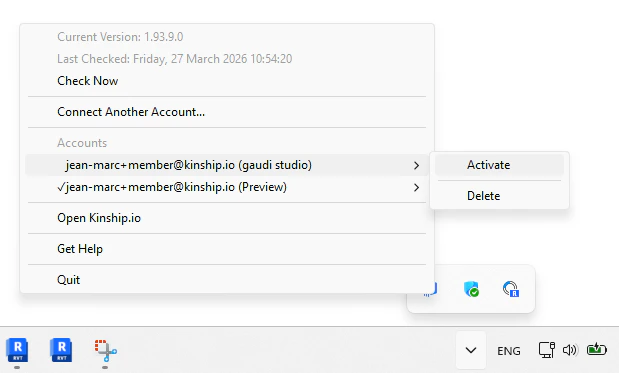
- Open the Kinship taskbar menu.
- Select the team you want to switch to.
-
Click Activate.
If you don't see the team you want to switch to, you need to activate the addin with that team first following the steps in [Connect the Revit Add-In to Your Account](how-to-connect-the-addin)
 ## Learn more
* [What the Kinship add-in does](about-the-kinship-addin)
* [Connect the Revit Add-In to Your Account](how-to-connect-the-addin)
## Learn more
* [What the Kinship add-in does](about-the-kinship-addin)
* [Connect the Revit Add-In to Your Account](how-to-connect-the-addin)