> ## Documentation Index
> Fetch the complete documentation index at: https://docs.kinship.io/llms.txt
> Use this file to discover all available pages before exploring further.
# How to Prevent Models from Being Tracked Automatically
> This quick guide shows administrators how to use Model Sync Rules to block automatic model tracking in Kinship
You can prevent models from being tracked by setting a Model Sync Rule to **Never**.
This guide shows how to block automatic tracking for specific models, folders, or all new models.
***
## Blocking models with a “Never” rule
1. **Go to Settings**
Log in and open **Settings** from your user menu.
2. **Open Model Sync Rules**
Scroll to the **Model Sync Rules** section.
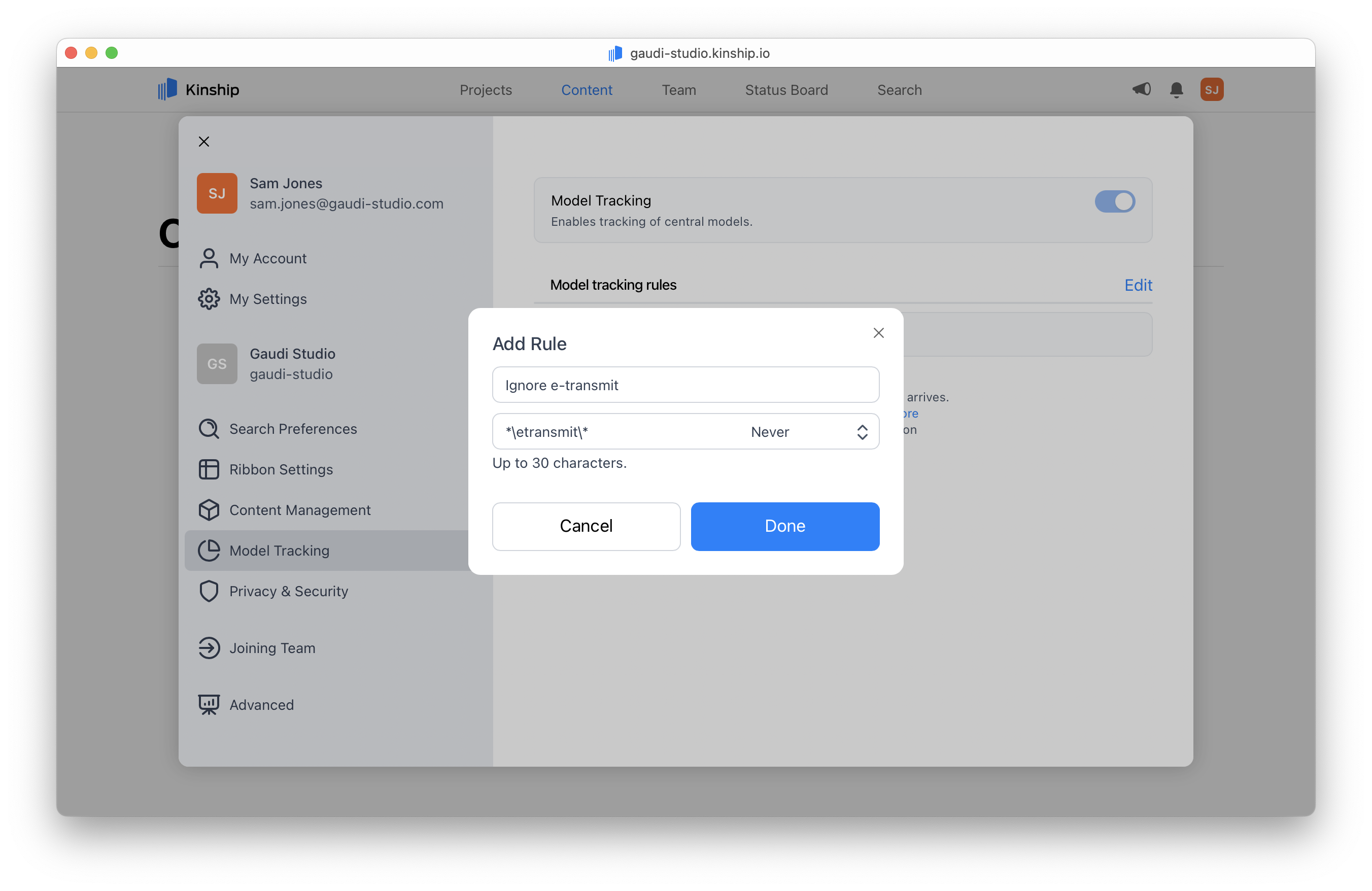
3. **Add a new rule**
* Click **Add Rule**.
* In the pattern field, enter the path or filename you want to block (e.g., `*\etransmit\*` or `*confidential*`).
* Select **Never** as the action.
* Click **Add** to save the rule.
 Only administrators can override `Never` rules and add blocked models manually.
***
## Blocking all new models by default
You can use a catch-all rule with pattern `*` and action **Never** to control when models are tracked.
Where you place this rule in your list changes its effect:
### Block all except allowed folders
To prevent all new models from being tracked **except those you explicitly allow**:
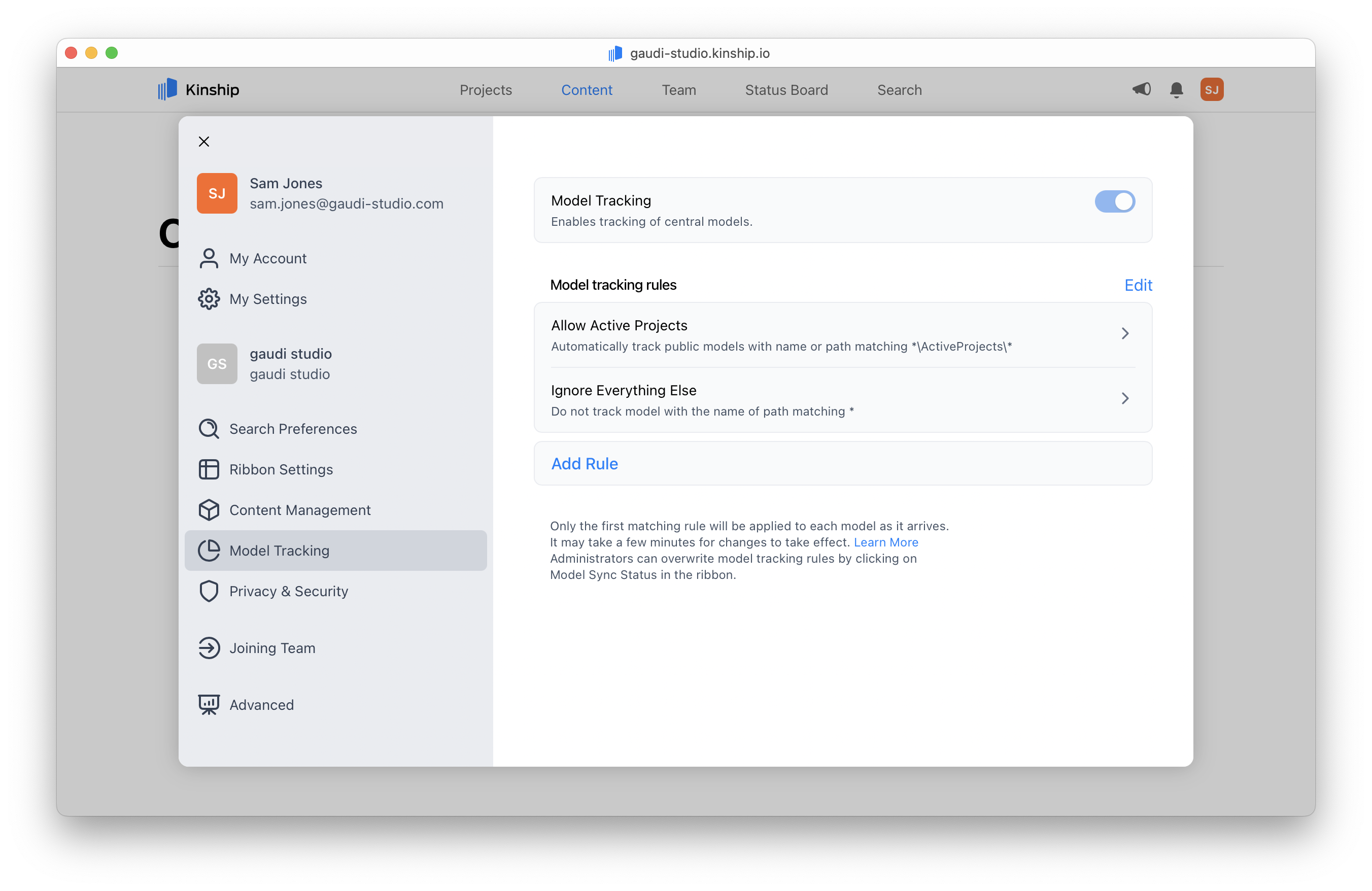
1. Add a rule with the folder(s) you want to allow (e.g., `*\ActiveProjects\*`), set to **Auto Public** (or your preferred action).
2. Add a rule with pattern `*` and action **Never**.
3. Move the “Never” rule to the **bottom** of your rule list.
Only administrators can override `Never` rules and add blocked models manually.
***
## Blocking all new models by default
You can use a catch-all rule with pattern `*` and action **Never** to control when models are tracked.
Where you place this rule in your list changes its effect:
### Block all except allowed folders
To prevent all new models from being tracked **except those you explicitly allow**:
1. Add a rule with the folder(s) you want to allow (e.g., `*\ActiveProjects\*`), set to **Auto Public** (or your preferred action).
2. Add a rule with pattern `*` and action **Never**.
3. Move the “Never” rule to the **bottom** of your rule list.
 ### Block all model tracking
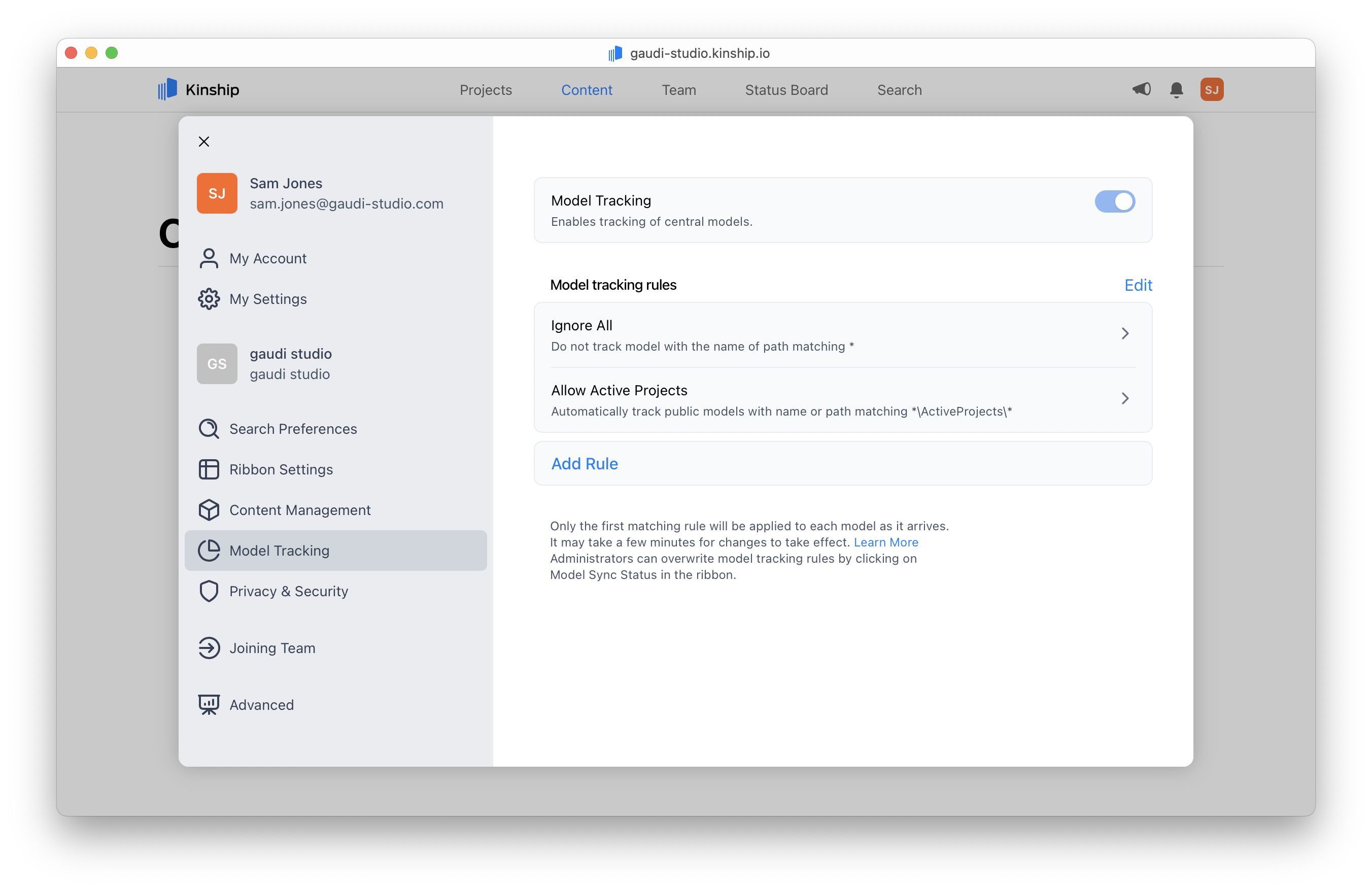
If you need to **block all new model tracking immediately**:
1. Add a rule with pattern `*` and action **Never**.
2. Move this rule to the **top** of your rule list.
You don’t need to delete or change your existing rules — just move or remove the catch-all rule when you’re ready to resume normal tracking.
Administrators can still add models manually using the Model Sync Status menu in the add-in.
### Block all model tracking
If you need to **block all new model tracking immediately**:
1. Add a rule with pattern `*` and action **Never**.
2. Move this rule to the **top** of your rule list.
You don’t need to delete or change your existing rules — just move or remove the catch-all rule when you’re ready to resume normal tracking.
Administrators can still add models manually using the Model Sync Status menu in the add-in.
 ## What happens next?
* Models matching your “Never” rules are now ignored.
* Blocked models will not show a prompt for users to add them.
* Admins can still override this using the Model Sync Status menu in the add-in.
***
## What happens next?
* Models matching your “Never” rules are now ignored.
* Blocked models will not show a prompt for users to add them.
* Admins can still override this using the Model Sync Status menu in the add-in.
***