> ## Documentation Index
> Fetch the complete documentation index at: https://docs.kinship.io/llms.txt
> Use this file to discover all available pages before exploring further.
# How to export a CSV file
> Download items in your Library and Collections as a CSV file for reference or to prepare for batch updating
You can export items or materials from any listing as a CSV file.
## Ways to use export CSV
There are two main reasons to export a CSV file:
* **To batch update content** — export a CSV, edit values in a spreadsheet, and import it back to update your Library items in bulk. Content Managers and Administrators can import CSVs to apply changes.
* **For reference** — export a snapshot of your Library or listing data for reporting, auditing, or use outside of Kinship. All team members can export.
## Export a CSV
1. Go to the listing you want to export items or materials from (for example, a List, category, or material class).
2. Click the more **⋯** menu at the top of the listing.
3. Click **Export Items to CSV...**
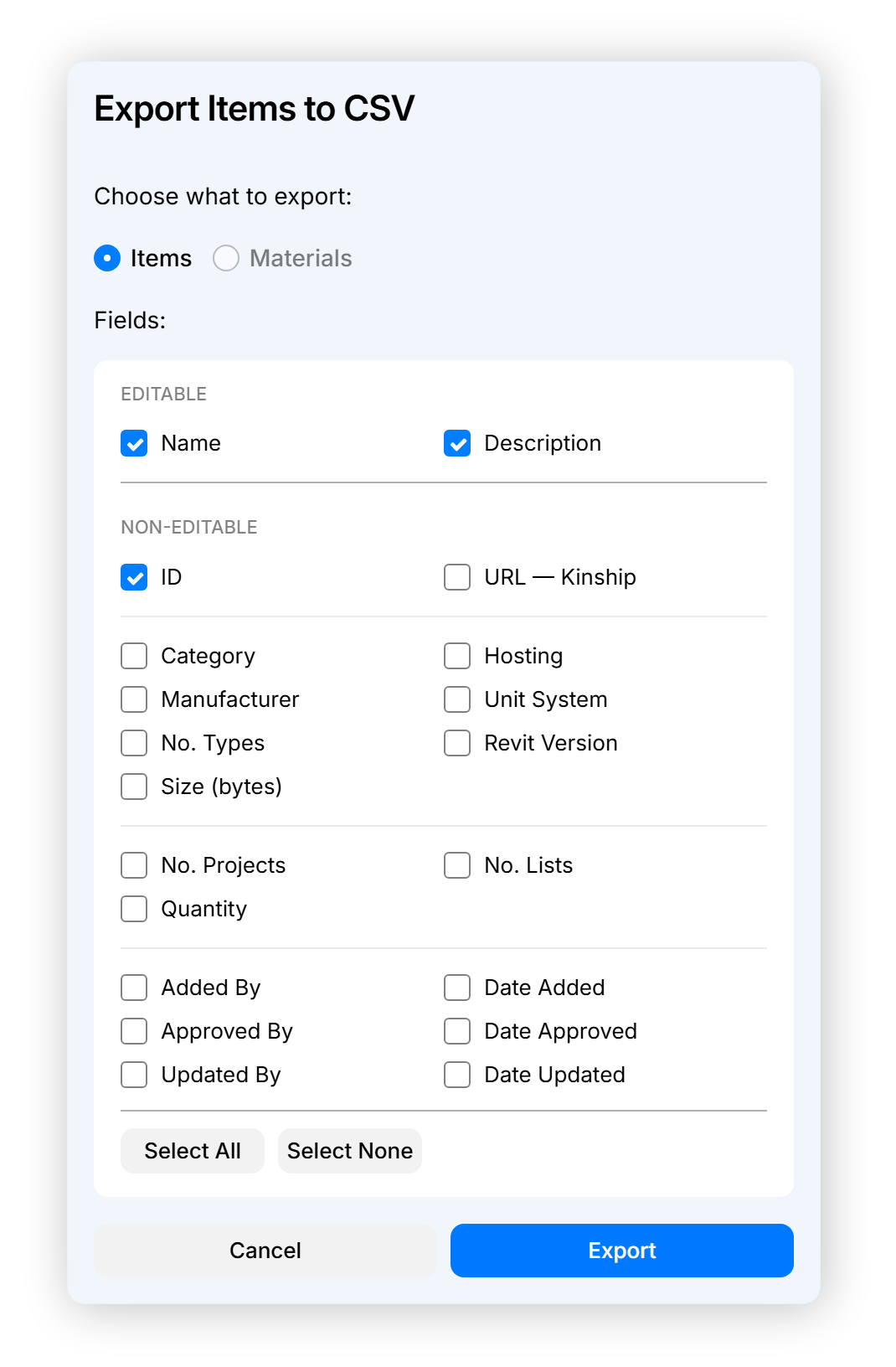
4. Under **Choose what to export**, select **Items** or **Materials**. If the current listing only contains one or the other, this option will be selected for you.
5. Review the field list. A default selection is already checked, including item IDs plus the editable fields. You can add or remove any other fields before exporting.
6. Click **Export**. The CSV file downloads to your computer.
 If you only need some of the items in the current listing, apply filters or input search terms before exporting. Only the visible content is exported.
### Editable fields for items and materials
The editable fields — the fields you can change and import back — differ between items and materials.
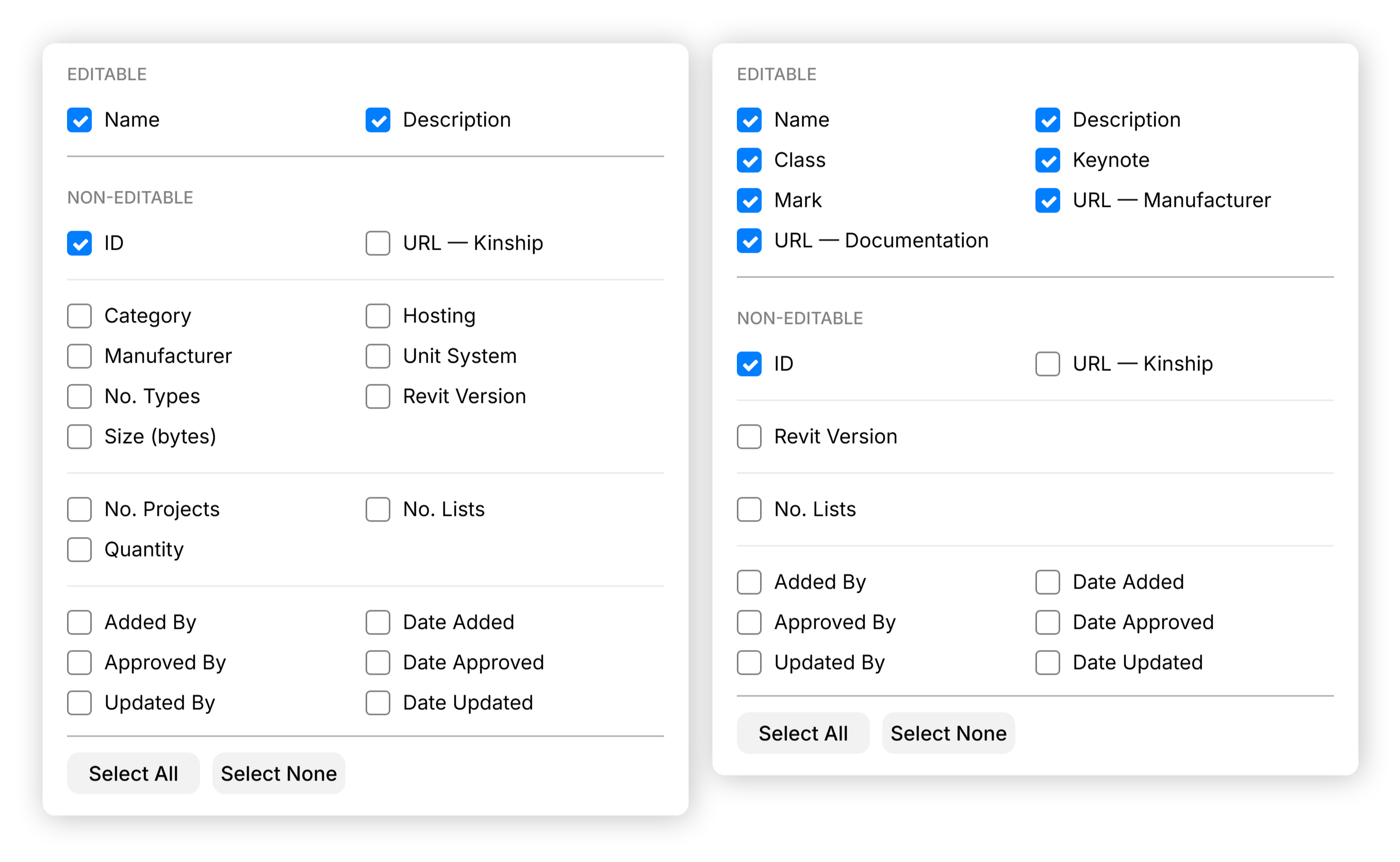
For **items**, the editable fields are: Name and Description.
For **materials**, the editable fields are: Name, Description, Class, Keynote, Mark, URL — Manufacturer, and URL — Documentation.
When you select Materials in the Export dialog, the field list updates to show these material-specific fields. The default selection includes all of them.
To enable batch updating, the ID field and at least one editable field must be included in the export.
If you only need some of the items in the current listing, apply filters or input search terms before exporting. Only the visible content is exported.
### Editable fields for items and materials
The editable fields — the fields you can change and import back — differ between items and materials.
For **items**, the editable fields are: Name and Description.
For **materials**, the editable fields are: Name, Description, Class, Keynote, Mark, URL — Manufacturer, and URL — Documentation.
When you select Materials in the Export dialog, the field list updates to show these material-specific fields. The default selection includes all of them.
To enable batch updating, the ID field and at least one editable field must be included in the export.
 ## Opening the CSV for editing
Open the exported file in Excel, Google Sheets, or any spreadsheet application.
When you open a CSV in Excel, it may not display correctly by default. To import it properly:
1. Click **File > Import**.
2. Select **CSV** and click **Import**.
3. Select your exported CSV file and click **Get Data**.
4. Select **Delimiter** as the data type, then click **Next**.
5. Select **Comma** as the delimiter, then click **Finish**.
6. Place your imported data in cell **A1** of the sheet and click **Import**.
When saving your changes, make sure to save as **CSV UTF-8 (Comma delimited) (.csv)** — not as an Excel workbook (.xlsx).
## Guidelines for editing
### What you can do
* Change values in editable fields. See [Batch updating — Reference](reference-batch-update-fields) for formatting rules for specific fields.
* Delete columns you don't need — columns are matched by header name, not position.
* Add extra columns — unrecognized headers are ignored on import.
* Rearrange column order freely.
### What to avoid
* Don't delete or modify values in the **ID** column. Without it, the import can't match rows back to your Library items.
* Don't rename column headers for editable fields. Headers must match exactly for the import to recognize them.
## Learn more
* [How to batch update items by importing a CSV file](how-to-import-a-csv) to apply your changes.
* [Batch updating — Reference](reference-batch-update-fields) for the full list of editable fields, character limits, and validation rules.
* [About batch updating items](about-batch-updating) for an overview of how batch updating works.
## Opening the CSV for editing
Open the exported file in Excel, Google Sheets, or any spreadsheet application.
When you open a CSV in Excel, it may not display correctly by default. To import it properly:
1. Click **File > Import**.
2. Select **CSV** and click **Import**.
3. Select your exported CSV file and click **Get Data**.
4. Select **Delimiter** as the data type, then click **Next**.
5. Select **Comma** as the delimiter, then click **Finish**.
6. Place your imported data in cell **A1** of the sheet and click **Import**.
When saving your changes, make sure to save as **CSV UTF-8 (Comma delimited) (.csv)** — not as an Excel workbook (.xlsx).
## Guidelines for editing
### What you can do
* Change values in editable fields. See [Batch updating — Reference](reference-batch-update-fields) for formatting rules for specific fields.
* Delete columns you don't need — columns are matched by header name, not position.
* Add extra columns — unrecognized headers are ignored on import.
* Rearrange column order freely.
### What to avoid
* Don't delete or modify values in the **ID** column. Without it, the import can't match rows back to your Library items.
* Don't rename column headers for editable fields. Headers must match exactly for the import to recognize them.
## Learn more
* [How to batch update items by importing a CSV file](how-to-import-a-csv) to apply your changes.
* [Batch updating — Reference](reference-batch-update-fields) for the full list of editable fields, character limits, and validation rules.
* [About batch updating items](about-batch-updating) for an overview of how batch updating works.