> ## Documentation Index
> Fetch the complete documentation index at: https://docs.kinship.io/llms.txt
> Use this file to discover all available pages before exploring further.
# How to Change a User’s Role
> Update a user’s role in your Kinship team to adjust their access and permissions.
# Change a user’s role
You can change the role of any user on your team—from Member to Admin, Admin to Owner, or any other valid change your team allows. This guide covers both individual and bulk role changes.
If you’re not sure what each role does, see [user roles and permissions](reference-user-roles) for details and a full permissions table.
***
## What you’ll need
* You must be a **Team Administrator** or **Owner**.
* The user must already be a member of your team.
The **Security Administrator** role only appears if it's been enabled in settings.
[Learn more about Security Admins](about-security-admins)
***
## 1. Open the Team page
Use the top navigation to go to **Team**.
***
## 2. Find the user
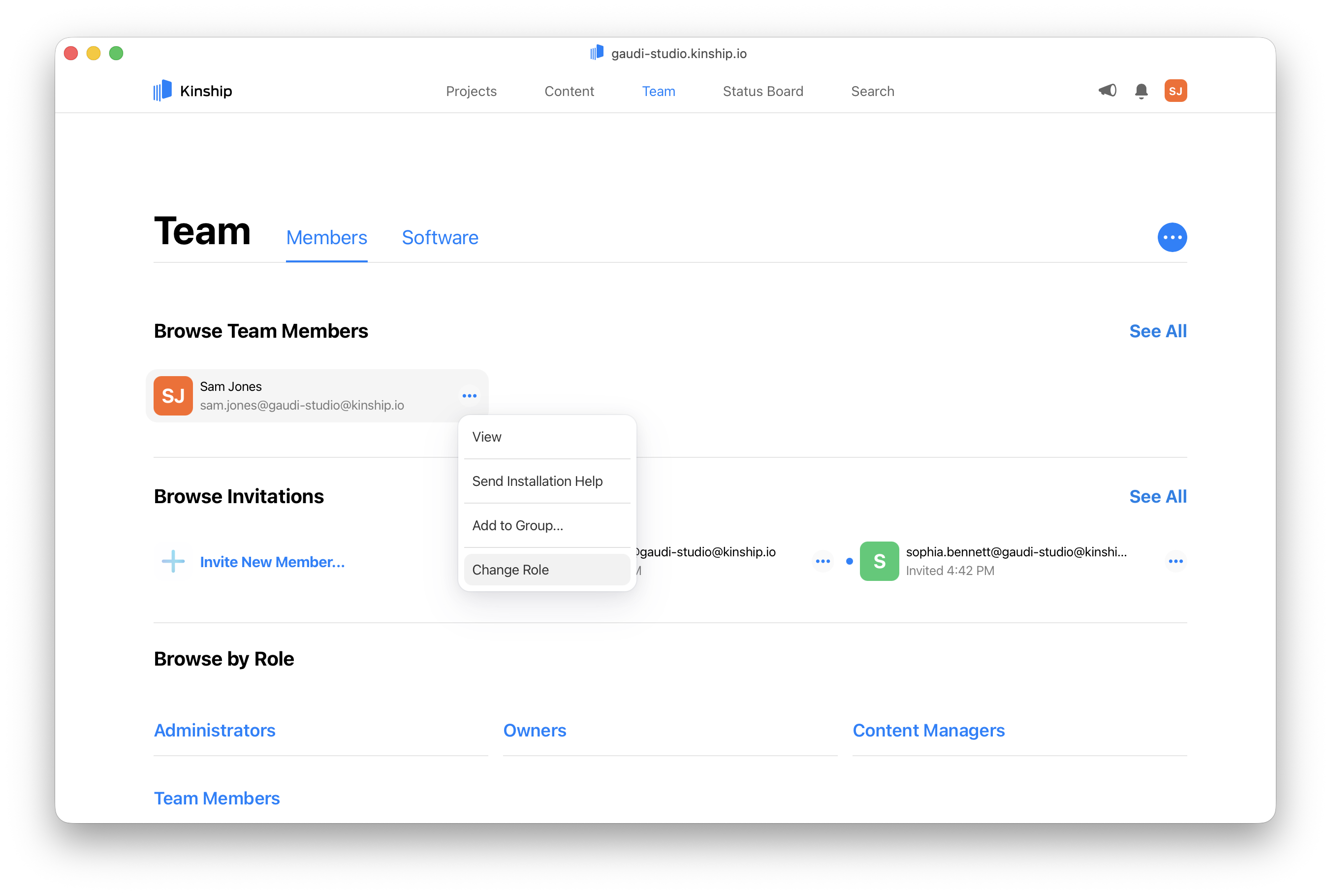
In the **Browse Team Members** section, you’ll see a list of recently joined users.
If the person you're looking for isn't listed, click **See All** to see all members.
***
## 3. Open the More menu
Next to the user’s name, click the  menu button and select **Change role**.
 ***
## 4. Choose the new role
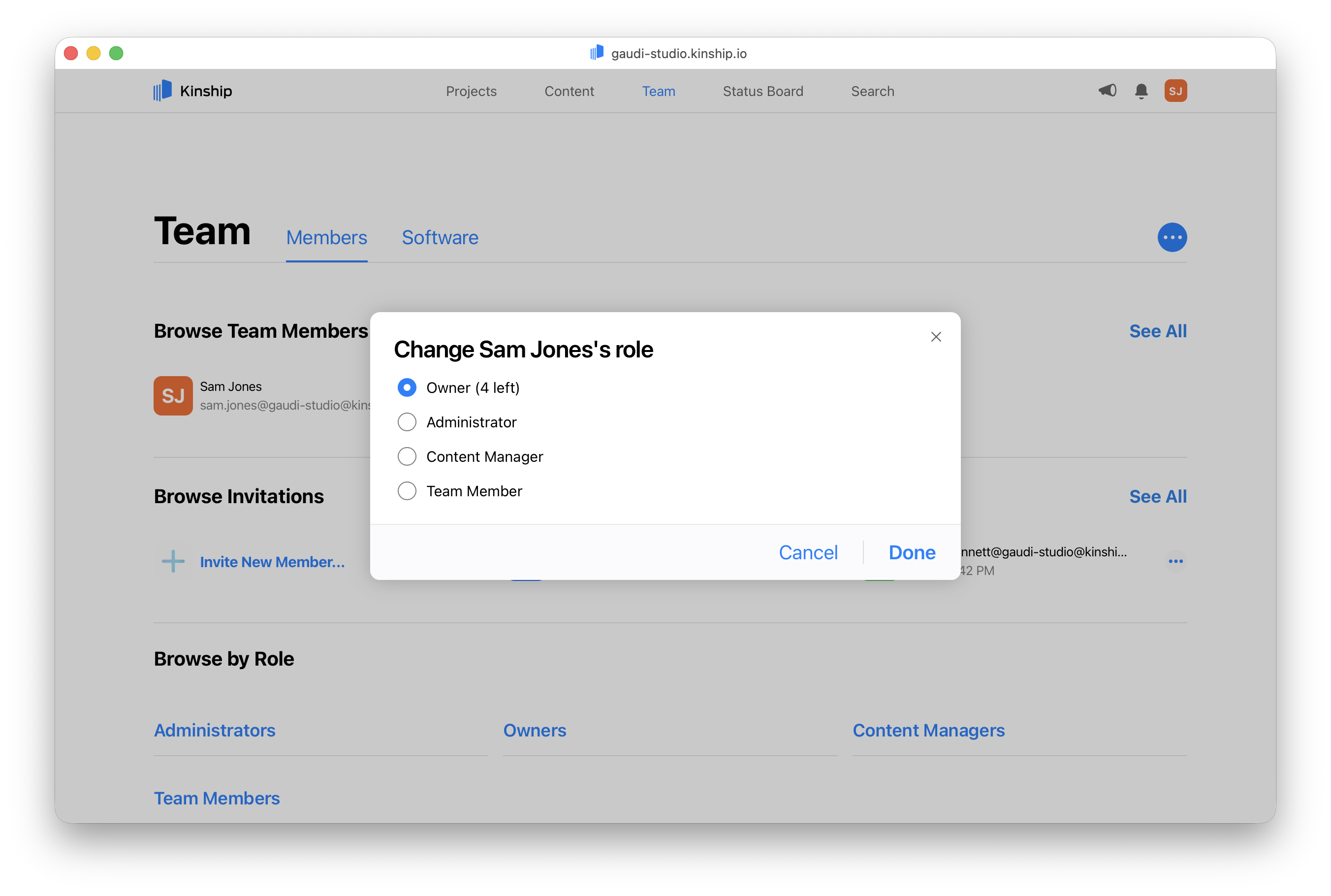
A dialog will appear with a list of available roles.
* Select the role you want to assign.
* If **Security Admin** is not shown, make sure that role has been enabled in your team’s settings.
Click **Done** to confirm.
***
## 4. Choose the new role
A dialog will appear with a list of available roles.
* Select the role you want to assign.
* If **Security Admin** is not shown, make sure that role has been enabled in your team’s settings.
Click **Done** to confirm.
 ***
## Change roles in bulk
You can also update roles for multiple users at once:
1. Go to **Team** → **Browse Team Members** → **See All**
2. Click **Select** to enter bulk selection mode
3. Select the users whose roles you want to change
4. Click **Change Role** in the bulk actions menu
5. Choose the new role and confirm
All selected users will be updated at once.
***
## Change roles in bulk
You can also update roles for multiple users at once:
1. Go to **Team** → **Browse Team Members** → **See All**
2. Click **Select** to enter bulk selection mode
3. Select the users whose roles you want to change
4. Click **Change Role** in the bulk actions menu
5. Choose the new role and confirm
All selected users will be updated at once.
 ***
## Troubleshooting
| Problem | What to check |
| ----------------------------------- | --------------------------------------------------------------- |
| **Can’t find a user** | Click **See more** to view the full list. |
| **“Change role” option is missing** | Make sure you have Admin or Owner privileges. |
| **Security Admin isn’t listed** | Enable Security Administrators in your team settings. |
| **Bulk action isn’t available** | You need to select at least one user before the action appears. |
***
## Learn more
* [Roles and permissions](reference-user-roles)
* [How to invite members to your team](how-to-invite-users)
* [How to deactivate users](../how-to/deactivate-users)
* [About users and team](../explanations/team-access-and-roles)
***
## Troubleshooting
| Problem | What to check |
| ----------------------------------- | --------------------------------------------------------------- |
| **Can’t find a user** | Click **See more** to view the full list. |
| **“Change role” option is missing** | Make sure you have Admin or Owner privileges. |
| **Security Admin isn’t listed** | Enable Security Administrators in your team settings. |
| **Bulk action isn’t available** | You need to select at least one user before the action appears. |
***
## Learn more
* [Roles and permissions](reference-user-roles)
* [How to invite members to your team](how-to-invite-users)
* [How to deactivate users](../how-to/deactivate-users)
* [About users and team](../explanations/team-access-and-roles)