> ## Documentation Index
> Fetch the complete documentation index at: https://docs.kinship.io/llms.txt
> Use this file to discover all available pages before exploring further.
# How to Add Content to Your Library
> Learn how to upload Revit families, schedules, and view templates to your Kinship library using the Revit add-in, whether from existing project models or external files and folders.
Content is processed on upload, extracting parameters, thumbnails, and essential metadata.
You can upload content using two primary methods:
1. From your Revit model – Add families and other elements that exist in your current project.
2. From files or folders – Add families from external .RFA files, including those organized in folders and subfolders.
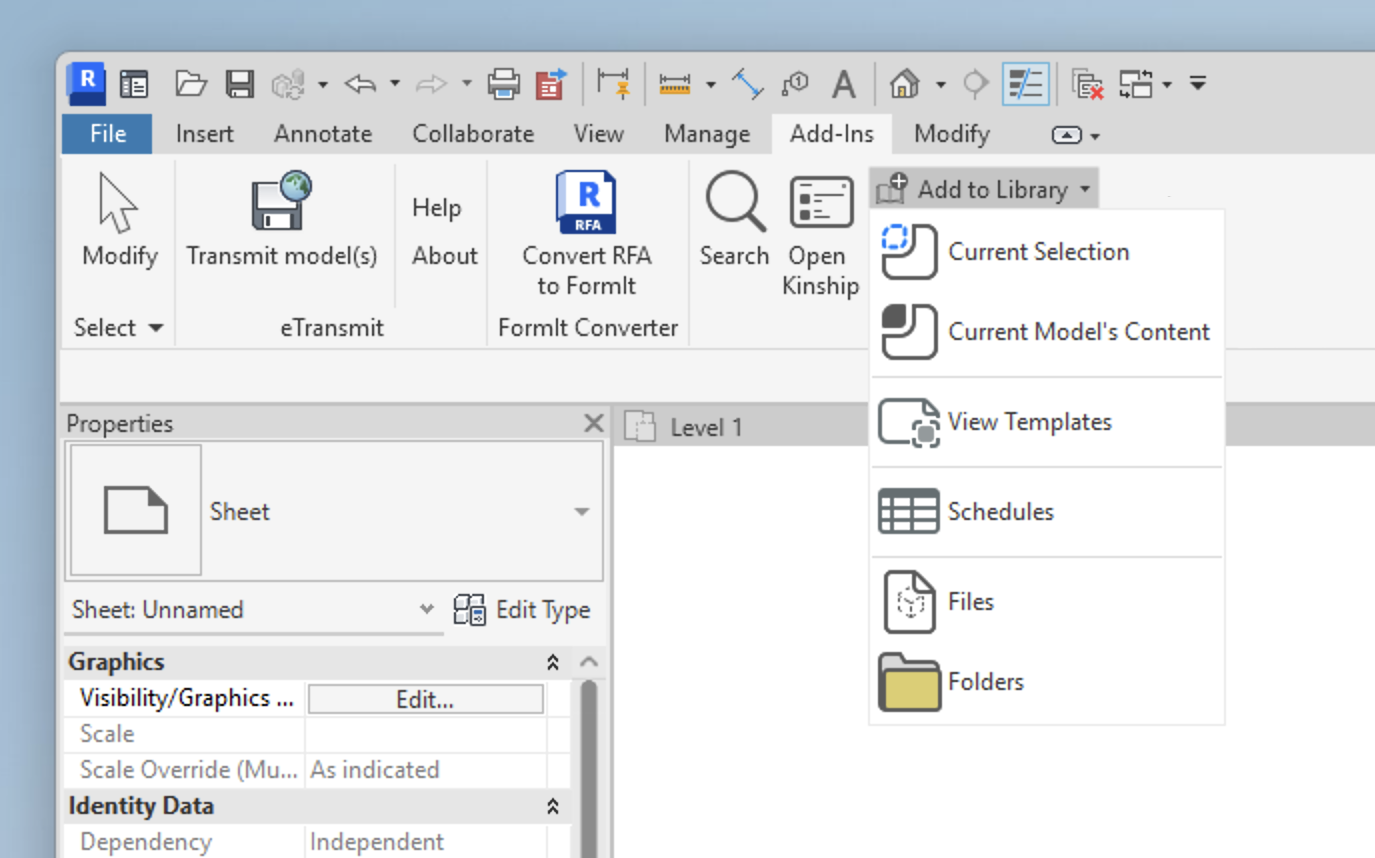
Adding content to your library will make it available to all users on your team. Start by opening the **Add-Ins** tab in the Revit ribbon, and on the **Kinship** panel, select one of the options under **Add to Library**.
 ***
## Adding content from files or folders
You can upload Revit family files (.RFA) from your computer or a network location.
### Adding individual files
1. Open Revit.
2. Navigate to the **Add-Ins** tab and locate the **Kinship** panel.
3. Click **Add to Library**.
4. Select **Files**.
5. In the file selection window, select one or multiple .RFA files (hold down the Control key for multiple selections).
6. Click **Open**.
7. Confirm by clicking **Add to Library**.
### Adding entire folders
1. Open Revit.
2. Navigate to the **Add-Ins** tab and locate the **Kinship** panel.
3. Click **Add to Library**.
4. Select **Folder**.
5. Choose the folder containing your Revit families (subfolders are included automatically).
6. Click **Select Folder**.
7. Confirm by clicking **Add to Library**.
Previously uploaded content is automatically skipped unless changes are detected.
Type catalog files (.txt) located in selected folders or subfolders will be processed automatically.
***
## Adding content from your Revit model
To add content directly from an open Revit model:
### Current selection
1. Open the desired model in Revit.
2. Select an item placed in the model or select it from the Project Browser.
3. Go to the **Add-Ins** tab and locate the **Kinship** panel.
4. Click **Add to Library**.
5. Choose **Current Selection** from the dropdown.
6. Confirm by clicking **Add to Library**.
When selecting families in the Project Browser, you must select a *type* rather than the family itself. Selecting any single type will always upload the entire family.
### Current model’s content
1. Open the desired model in Revit.
2. Go to the **Add-Ins** tab and locate the **Kinship** panel.
3. Click **Add to Library**.
4. Select **Current Model’s Content** to upload all families from the open model.
5. Confirm by clicking **Add to Library**.
### View templates
1. Open the desired model in Revit.
2. Go to the **Add-Ins** tab and locate the **Kinship** panel.
3. Click **Add to Library**.
4. Select **View Templates**.
5. Select desired view templates.
6. Confirm by clicking **Add to Library**.
### Schedules
1. Open the desired model in Revit.
2. Go to the **Add-Ins** tab and locate the **Kinship** panel.
3. Click **Add to Library**.
4. Select **Schedules**.
5. Select the desired schedules.
6. Confirm by clicking **Add to Library**.
### Materials
1. Open the desired model in Revit.
2. Go to the **Add-Ins** tab and locate the **Kinship** panel.
3. Click **Add to Library**.
4. Select **Materials**.
5. Select the desired materials.
6. Confirm by clicking **Add to Library**.
***
## Options when adding single vs multiple items
When confirming your upload, the options will differ depending on the number of items found or selected:
* **Single Item**\
You will see a dialog where you can rename the item, add comments, and optionally mark it as **pending approval** before clicking **Add to Library**.
* **Multiple Items**\
You will see a dialog showing the number of items found, with options to:
* **Add to Library** – Adds all items to your library.
* **Add to new or existing lists** – Create or select lists to add the items to.\
[Learn more about lists](#placeholder-link)
* **Add as pending approval** – Adds items for review by content managers or administrators.\
[Learn more about pending approval](#placeholder-link)
***
## Adding content from files or folders
You can upload Revit family files (.RFA) from your computer or a network location.
### Adding individual files
1. Open Revit.
2. Navigate to the **Add-Ins** tab and locate the **Kinship** panel.
3. Click **Add to Library**.
4. Select **Files**.
5. In the file selection window, select one or multiple .RFA files (hold down the Control key for multiple selections).
6. Click **Open**.
7. Confirm by clicking **Add to Library**.
### Adding entire folders
1. Open Revit.
2. Navigate to the **Add-Ins** tab and locate the **Kinship** panel.
3. Click **Add to Library**.
4. Select **Folder**.
5. Choose the folder containing your Revit families (subfolders are included automatically).
6. Click **Select Folder**.
7. Confirm by clicking **Add to Library**.
Previously uploaded content is automatically skipped unless changes are detected.
Type catalog files (.txt) located in selected folders or subfolders will be processed automatically.
***
## Adding content from your Revit model
To add content directly from an open Revit model:
### Current selection
1. Open the desired model in Revit.
2. Select an item placed in the model or select it from the Project Browser.
3. Go to the **Add-Ins** tab and locate the **Kinship** panel.
4. Click **Add to Library**.
5. Choose **Current Selection** from the dropdown.
6. Confirm by clicking **Add to Library**.
When selecting families in the Project Browser, you must select a *type* rather than the family itself. Selecting any single type will always upload the entire family.
### Current model’s content
1. Open the desired model in Revit.
2. Go to the **Add-Ins** tab and locate the **Kinship** panel.
3. Click **Add to Library**.
4. Select **Current Model’s Content** to upload all families from the open model.
5. Confirm by clicking **Add to Library**.
### View templates
1. Open the desired model in Revit.
2. Go to the **Add-Ins** tab and locate the **Kinship** panel.
3. Click **Add to Library**.
4. Select **View Templates**.
5. Select desired view templates.
6. Confirm by clicking **Add to Library**.
### Schedules
1. Open the desired model in Revit.
2. Go to the **Add-Ins** tab and locate the **Kinship** panel.
3. Click **Add to Library**.
4. Select **Schedules**.
5. Select the desired schedules.
6. Confirm by clicking **Add to Library**.
### Materials
1. Open the desired model in Revit.
2. Go to the **Add-Ins** tab and locate the **Kinship** panel.
3. Click **Add to Library**.
4. Select **Materials**.
5. Select the desired materials.
6. Confirm by clicking **Add to Library**.
***
## Options when adding single vs multiple items
When confirming your upload, the options will differ depending on the number of items found or selected:
* **Single Item**\
You will see a dialog where you can rename the item, add comments, and optionally mark it as **pending approval** before clicking **Add to Library**.
* **Multiple Items**\
You will see a dialog showing the number of items found, with options to:
* **Add to Library** – Adds all items to your library.
* **Add to new or existing lists** – Create or select lists to add the items to.\
[Learn more about lists](#placeholder-link)
* **Add as pending approval** – Adds items for review by content managers or administrators.\
[Learn more about pending approval](#placeholder-link)