> ## Documentation Index
> Fetch the complete documentation index at: https://docs.kinship.io/llms.txt
> Use this file to discover all available pages before exploring further.
# Appearance Asset Types
> Learn about appearance asset types in Revit materials and how they're organized in Kinship.
## Introduction
Every material includes an appearance asset, seen in its Appearance tab, which is a collection of settings controlling how the material looks in realistic views and renderings.
Revit provides 19 appearance asset types, ranging from flexible general-purpose types like Generic, Opaque and Transparent to specialized types intended for specific materials such as Concrete and Glazing.
The asset type determines which properties you can control, such as base color, bump and relief, transparency, and many others.
***
## Appearance asset types in the Library
The 19 appearance asset types are listed in the materials section of the library. Clicking any of these shows materials in your library that use the relevant type.
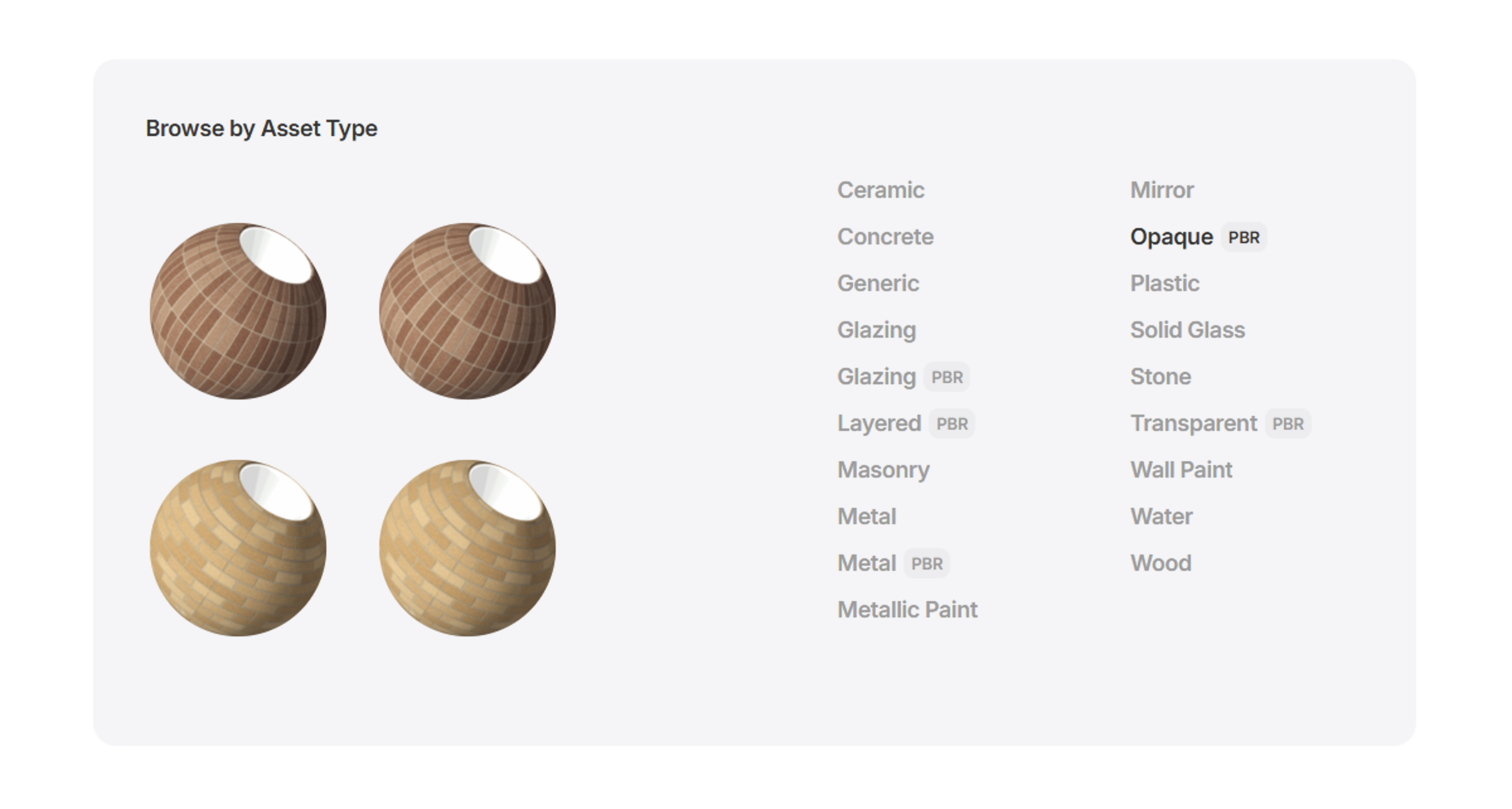 Most listing views (including the All Materials view) include a filter for the appearance asset type, allowing you to identify materials fitting a search criteria or with a particular Class that also use the asset type.
The settings used in the appearance asset for specific materials are displayed on its [Material Item Page](reference-materials-item-page).
## Learn more
Understand how to build, organize, and search within your library of Revit materials.
Learn about the rich information provided for each material and how to use it to inform selection and comparison.
Learn how to manage materials in your library, including bulk actions, editing material properties, and organizing your content.
***
Most listing views (including the All Materials view) include a filter for the appearance asset type, allowing you to identify materials fitting a search criteria or with a particular Class that also use the asset type.
The settings used in the appearance asset for specific materials are displayed on its [Material Item Page](reference-materials-item-page).
## Learn more
Understand how to build, organize, and search within your library of Revit materials.
Learn about the rich information provided for each material and how to use it to inform selection and comparison.
Learn how to manage materials in your library, including bulk actions, editing material properties, and organizing your content.
***